

Overview
The Content Library in Proposal.biz helps you manage your brand, business content, and data sources in one place.
Step 1: Add Your Website
Add your website from the dashboard to automatically capture your brand information.
Enter your website URL
Click Generate Brand Voice
-
Proposal.biz will scan your website and extract:
Brand voice
Logo and favicon
Brand colours
Relevant business content
💡 Pro Tip Use your live website URL for the most accurate results.
Walkthrough: [Here you go ]
Step 2: Manage Your Content
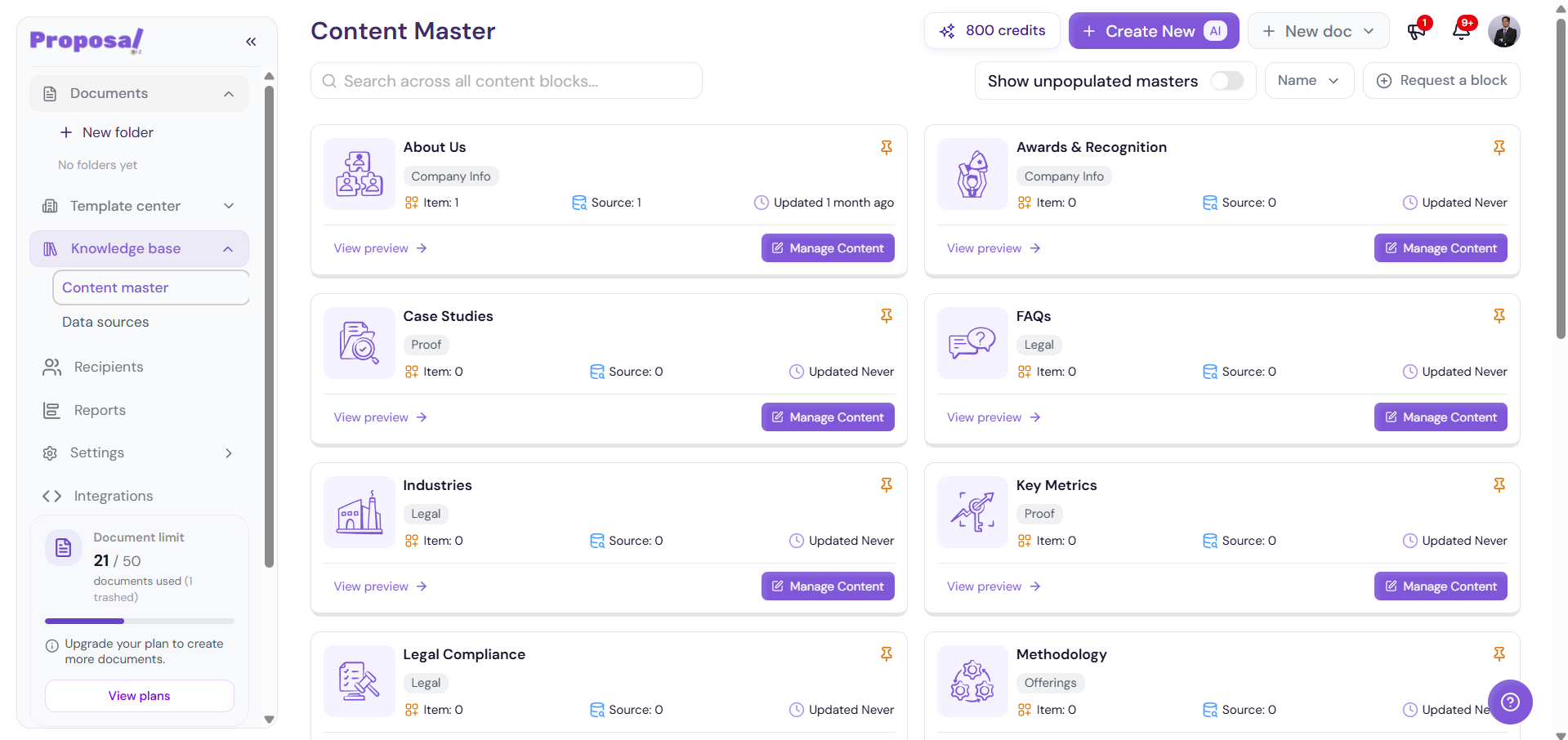
Go to Knowledge Base → Content Master to view and manage your content blocks.
Click Manage Content to review or update any content. You can also use Request Content Block to request additional information.
Step 3: Add Data Sources
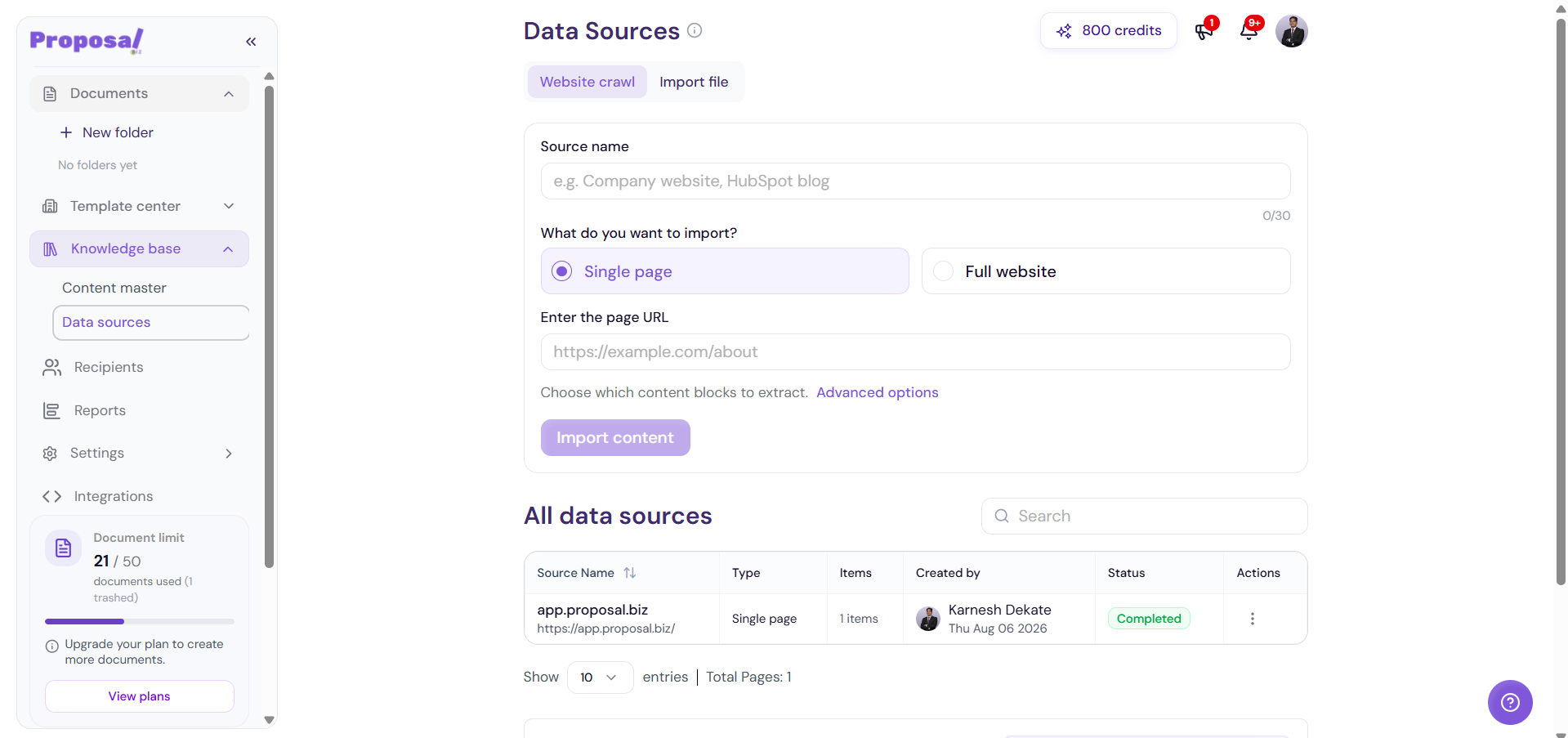
Go to Data Sources to add more business information.
You can:
Crawl Website — Import content from a single page or full website.
Import Files — Upload files or connect your Google Drive.
Step 4: View Your Branding
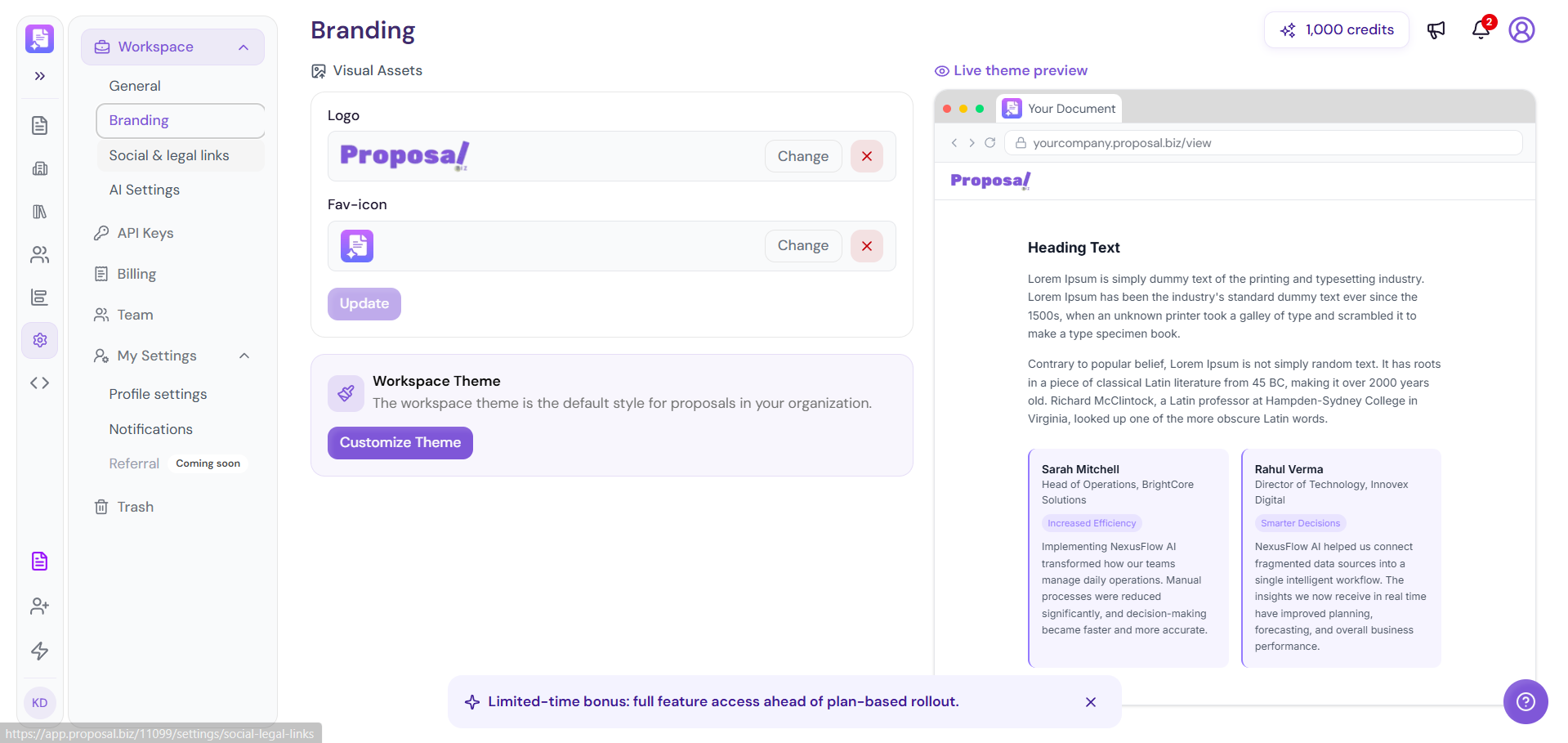
Go to Settings → Branding to view your captured:
Logo
Favicon
Brand colours
Theme preview
Next Steps
Your Content Library is ready. Keep your content and data sources updated to create more personalized documents with Proposal.biz.