

Overview
Connecting HubSpot to Proposal.biz allows you to sync your CRM data contacts, companies, and deals directly into your documents. Once connected, you can map HubSpot fields to document variables, and create and share Proposal.biz documents straight from your HubSpot contact records.
[Insert screenshot: Integrations — HubSpot card on the Integrations page]
Step 1: Open the Integrations Section
From your Proposal.biz dashboard go to Integrations in the left sidebar
The Integrations page will open showing all available integrations
Step 2: Connect Your HubSpot Account
Find HubSpot in the integrations list
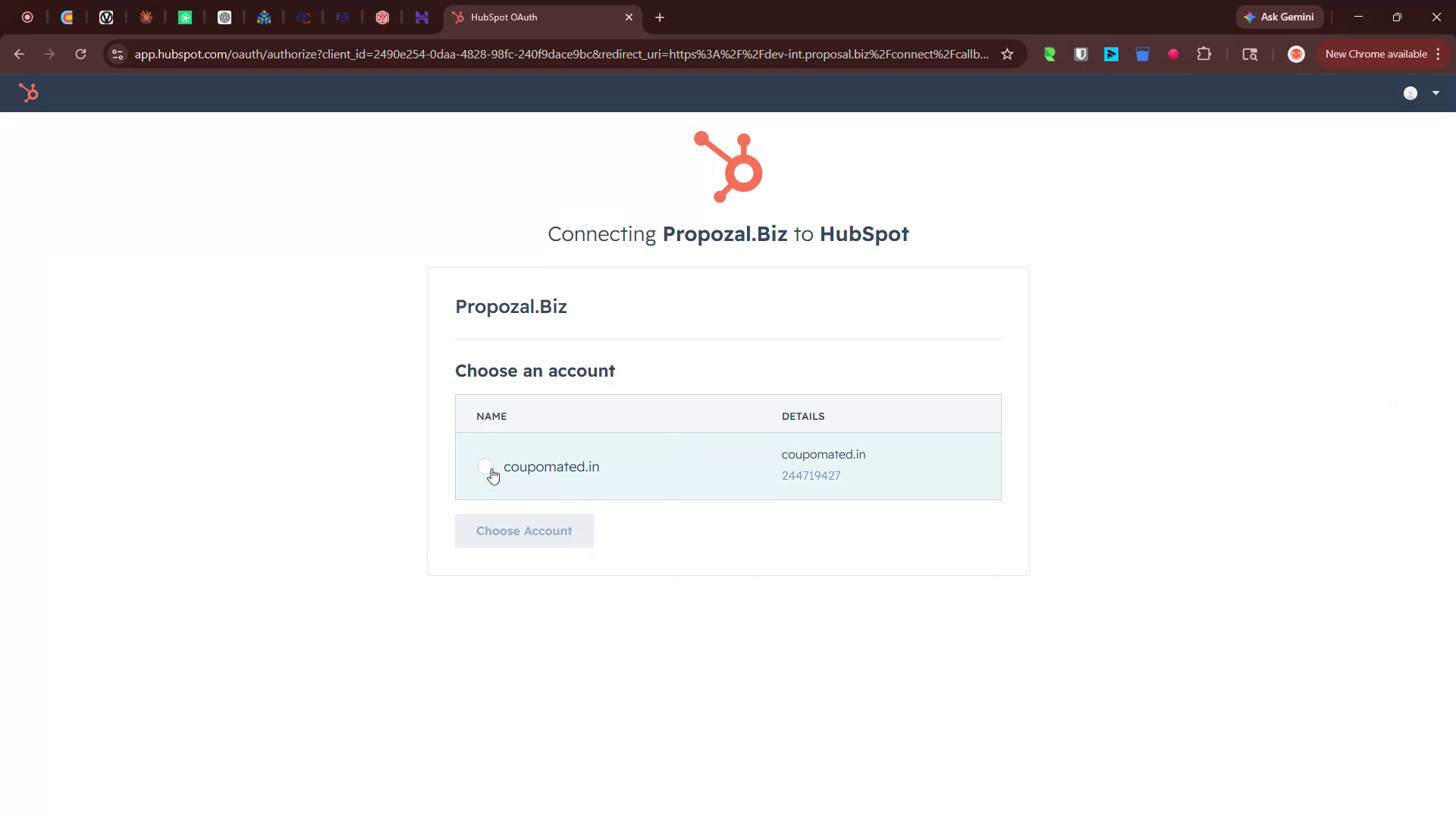
Click Connect and Install
You will be taken to the HubSpot login page
Select the HubSpot account you want to connect
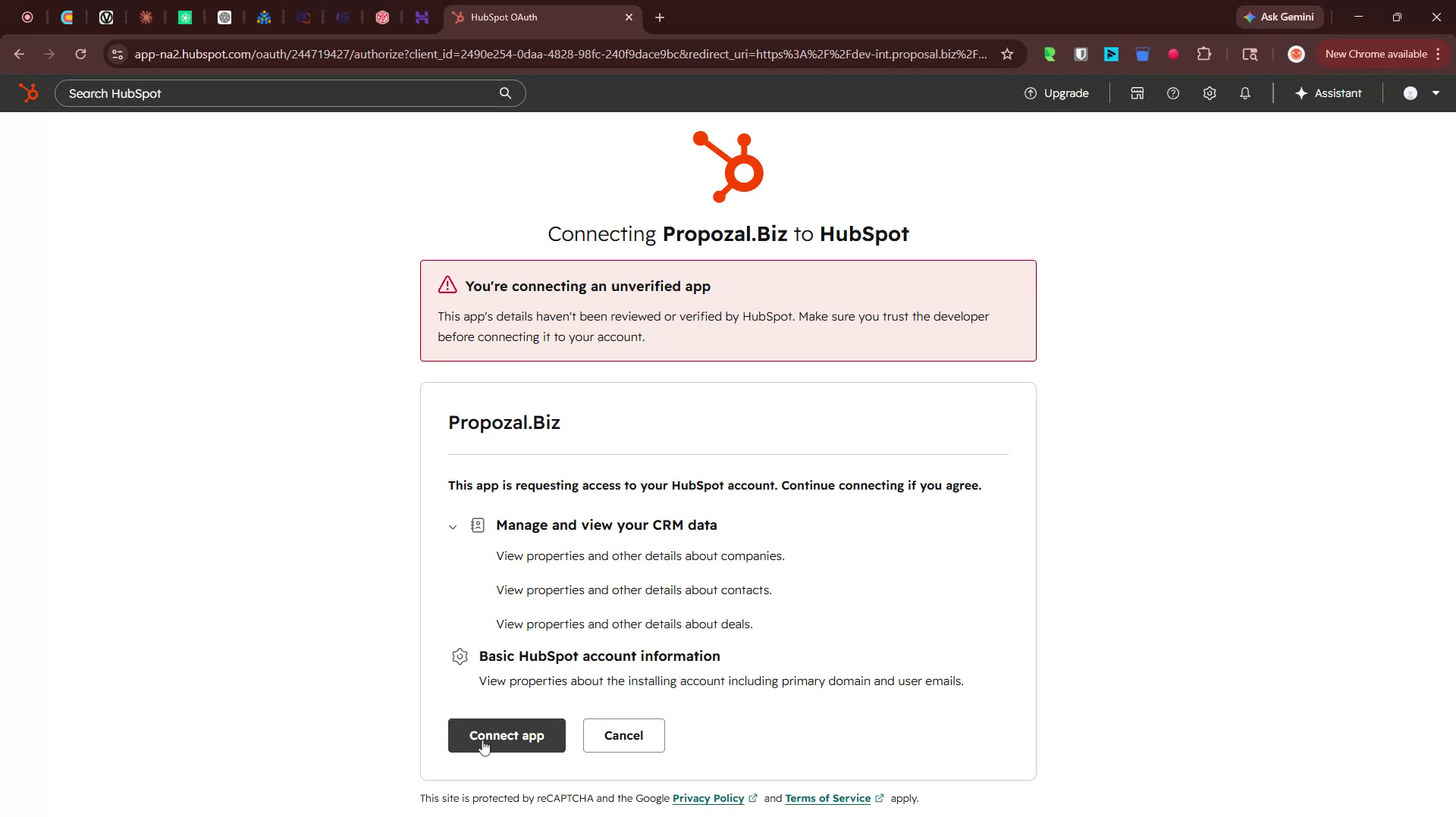
Click Yes, connect to confirm
Approve the app connection when prompted
Click I accept the risk and connect to finish
Once complete, HubSpot will show as Connected in Proposal.biz.
Step 3: Configure Variable Mapping
Once HubSpot is connected, set up Variable Mapping to define which HubSpot fields automatically populate in your Proposal.biz documents.
In Proposal.biz go to the HubSpot integration settings
Open Variable Mapping
-
You will see all available HubSpot tokens organized by category:
Deal tokens
Contact tokens
Company tokens
Click Add variable to map a HubSpot token to a Proposal.biz variable for example mapping HubSpot's close date to a document variable
Repeat for all fields you want to auto-populate
Once mapped, whenever you use that variable in a document its value will be pulled automatically from HubSpot, No manual entry needed
💡 Pro Tip Map your most frequently used HubSpot fields first such as contact name, company name, deal value, and close date. These are the fields that appear most often in proposals and will save your team the most time.
Step 4: Open Proposal.biz App Settings in HubSpot
Log in to your HubSpot CRM account
Go to the Marketplace and click Connected apps
Find Proposal.biz in the list of connected apps
Click on the Proposal.biz app to view its settings
Step 5: Manage App Card Locations and Permissions
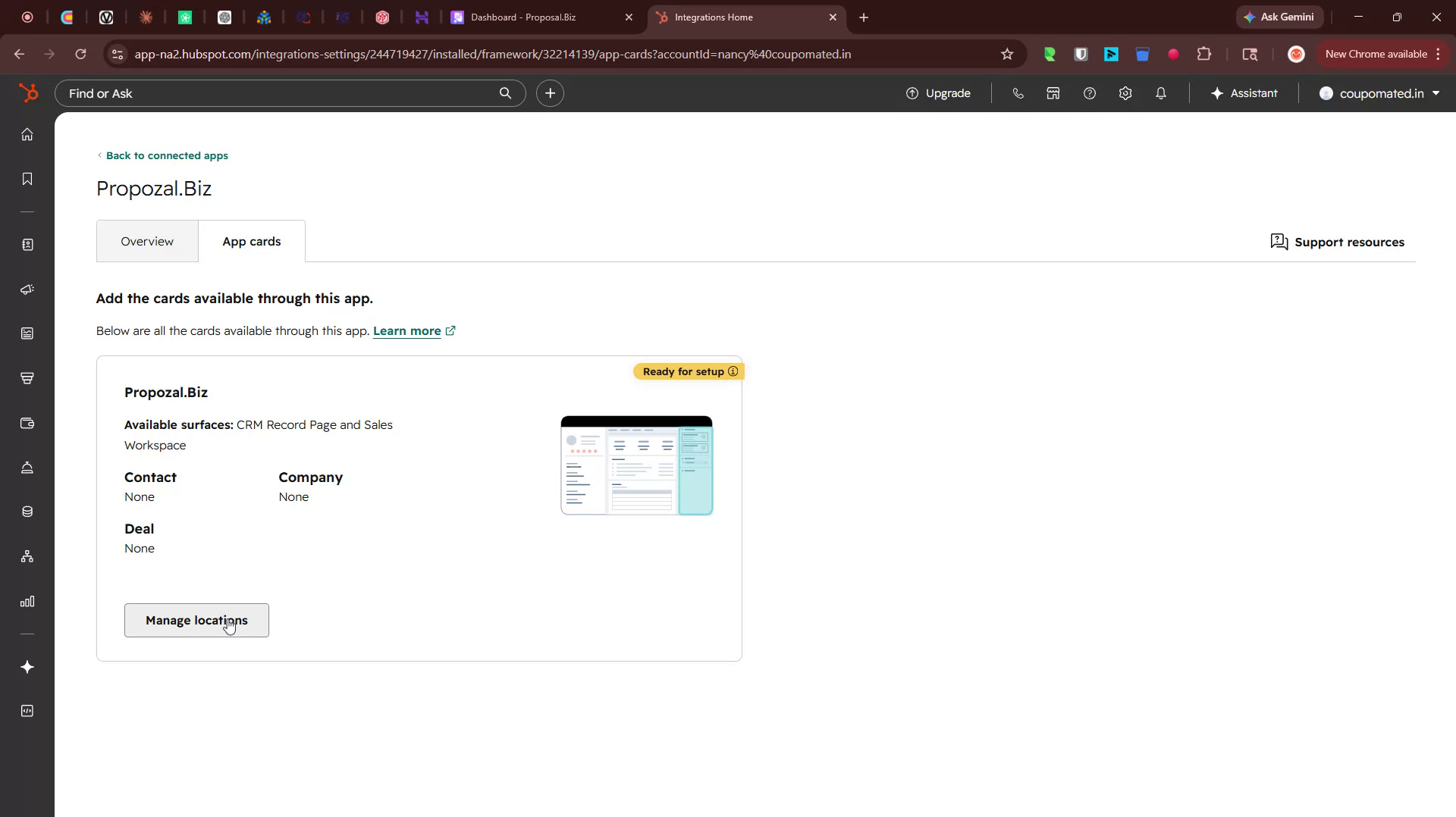
Inside the Proposal.biz app settings click App cards
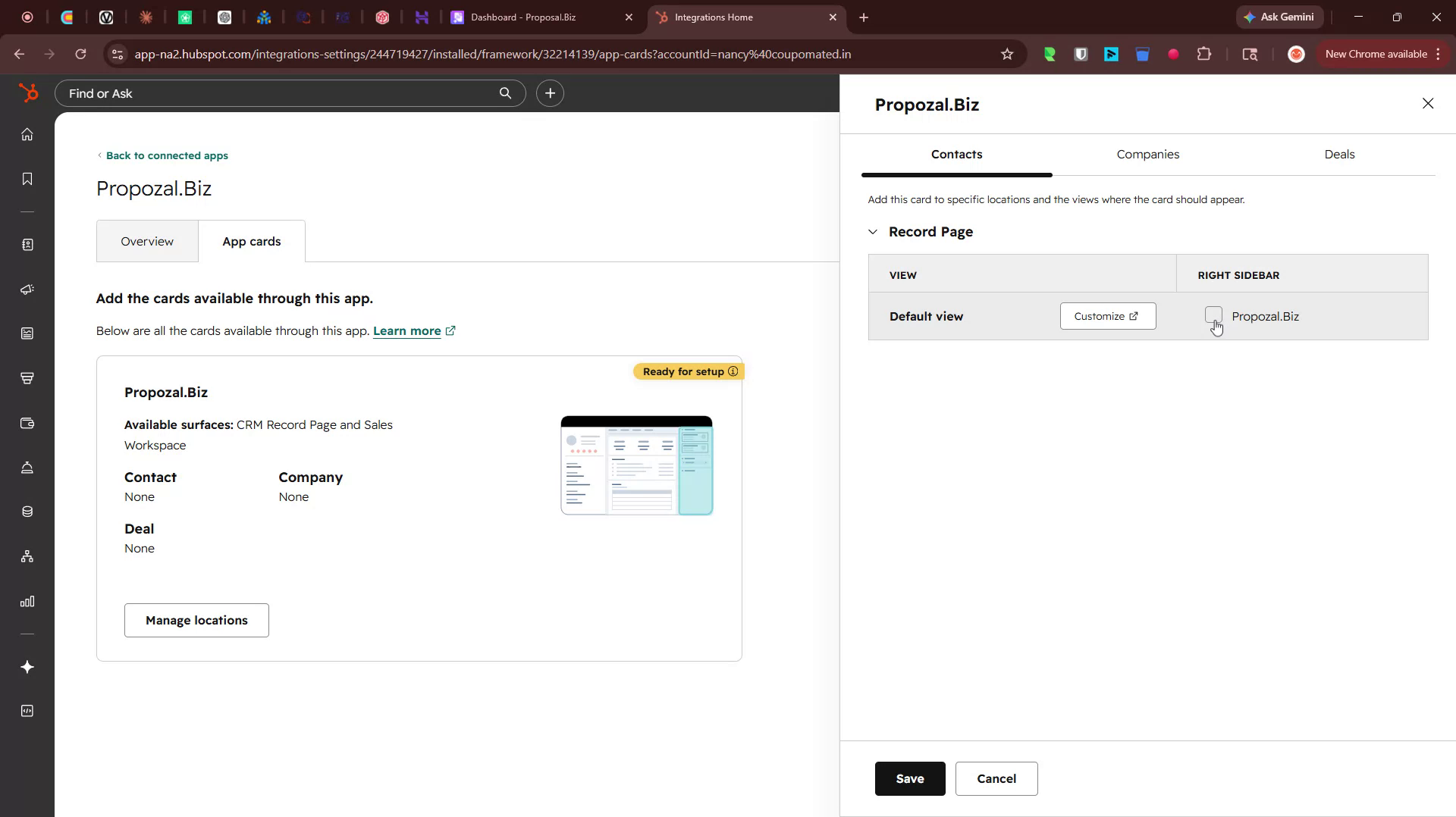
Click Manage locations
-
Enable access for the objects where you want the Proposal.biz app card to appear:
Contacts
Companies
Deals
Click Save to apply
Step 6: Access the Proposal.biz App Card from a HubSpot Contact
Open any Contact record in HubSpot
Scroll down the right-hand side panel
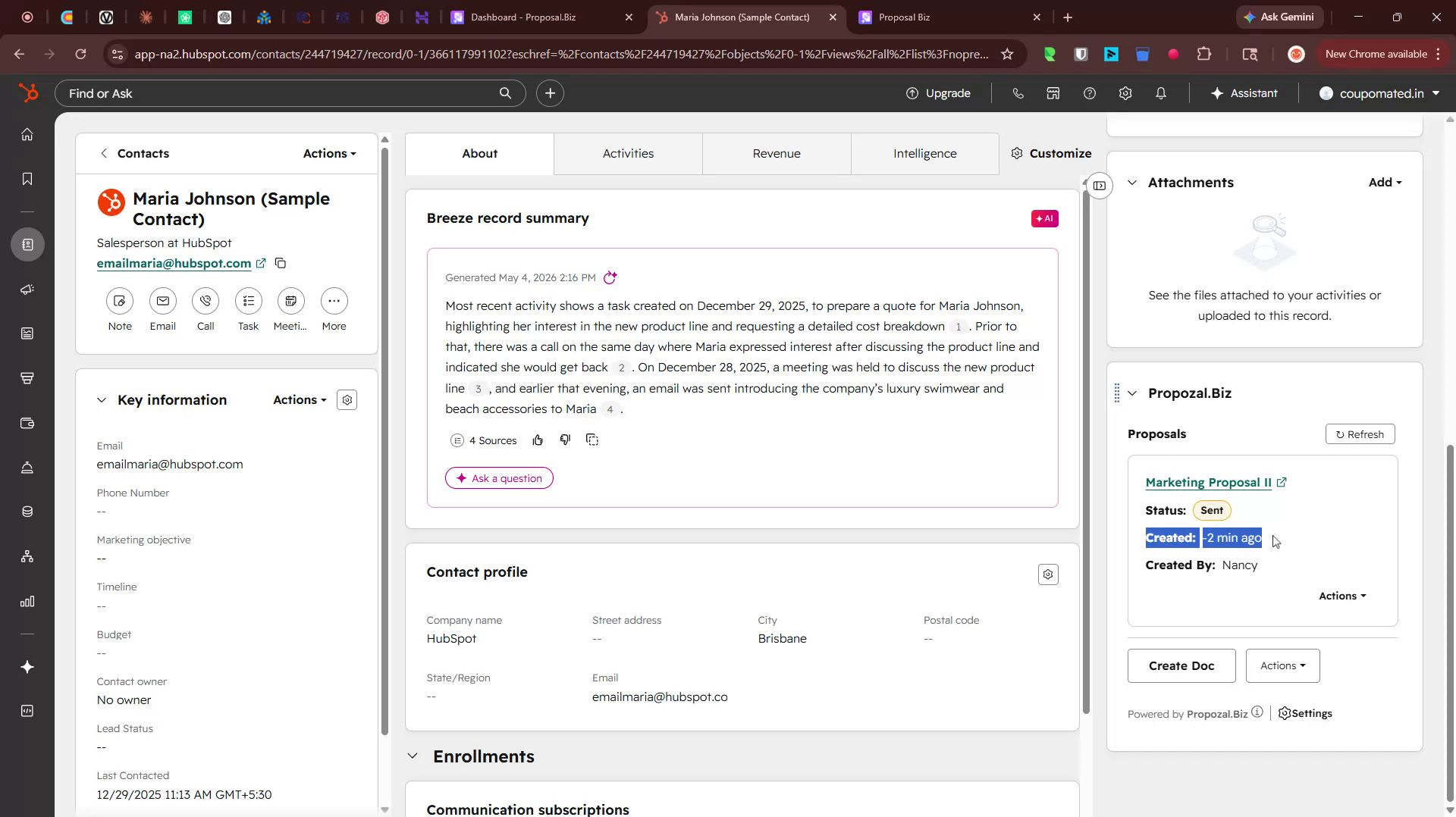
Find the Proposal.biz app card
From the app card you can sync data or create documents directly without needing to log in to Proposal.biz separately.
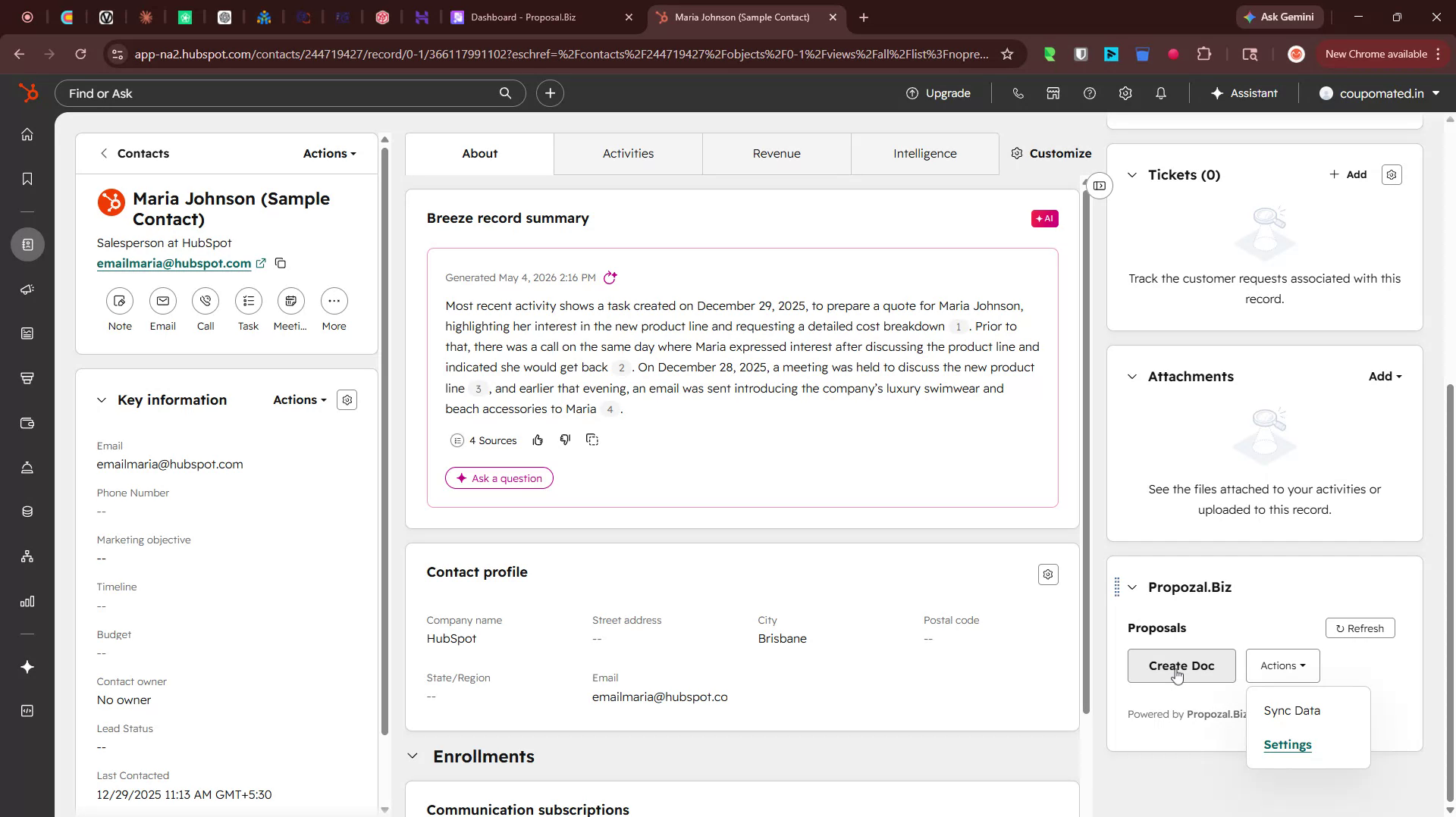
Step 7: Create a New Document from a HubSpot Contact
On the Proposal.biz app card inside the contact record click Create doc
Select Start with template
Pick the template category you want
Add recipient details — for example the current contact
Click Save configuration
-
You will be redirected to Proposal.biz to continue building your document
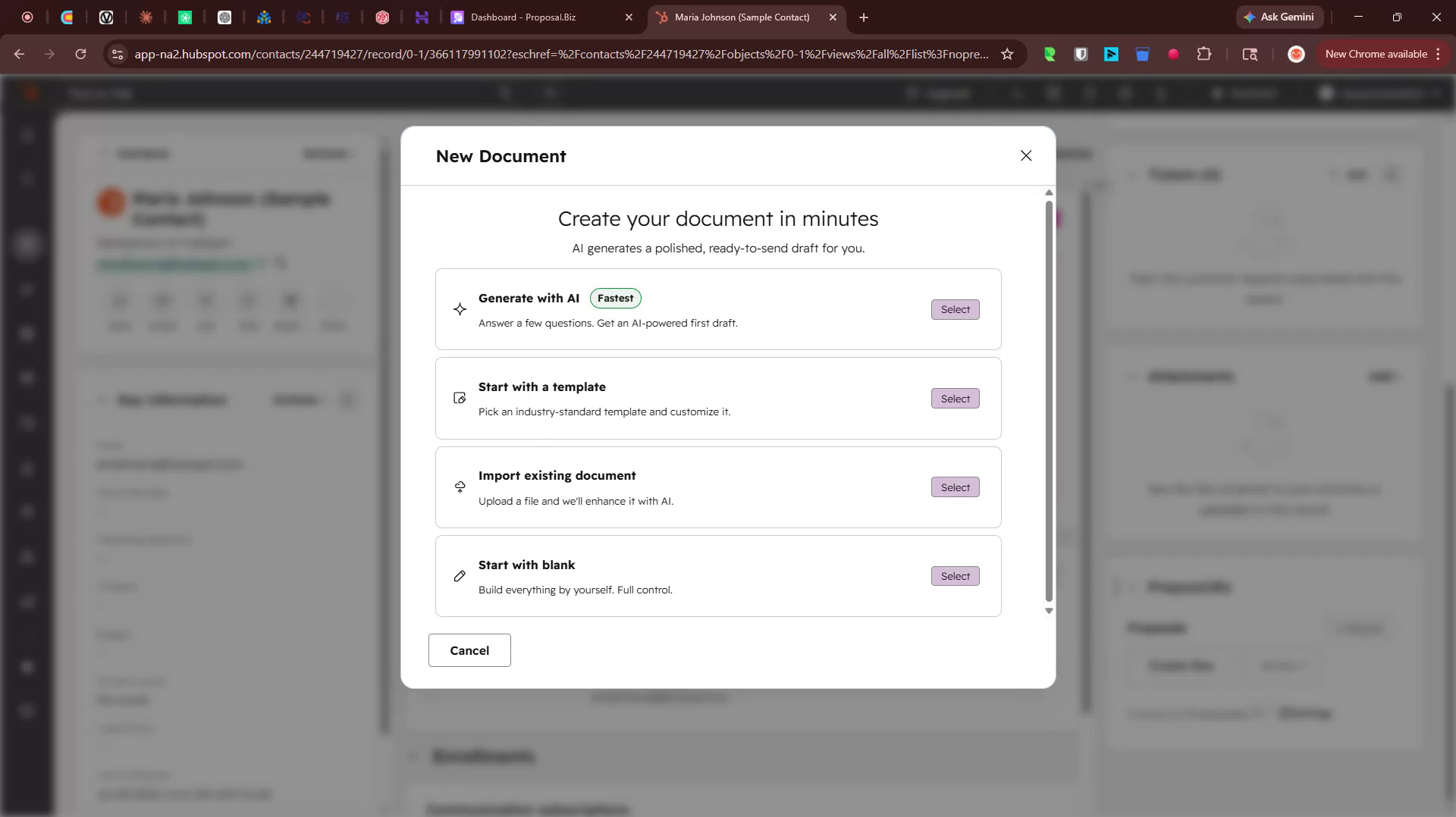
Step 8: Select Document Type and Template in Proposal.biz
Once redirected to Proposal.biz:
Choose the type of document you want to create — for example Marketing
Select the document type — for example Marketing Proposal
Browse the available templates and click Use this template
-
You will be taken to the Proposal.biz document builder with your new document ready to edit
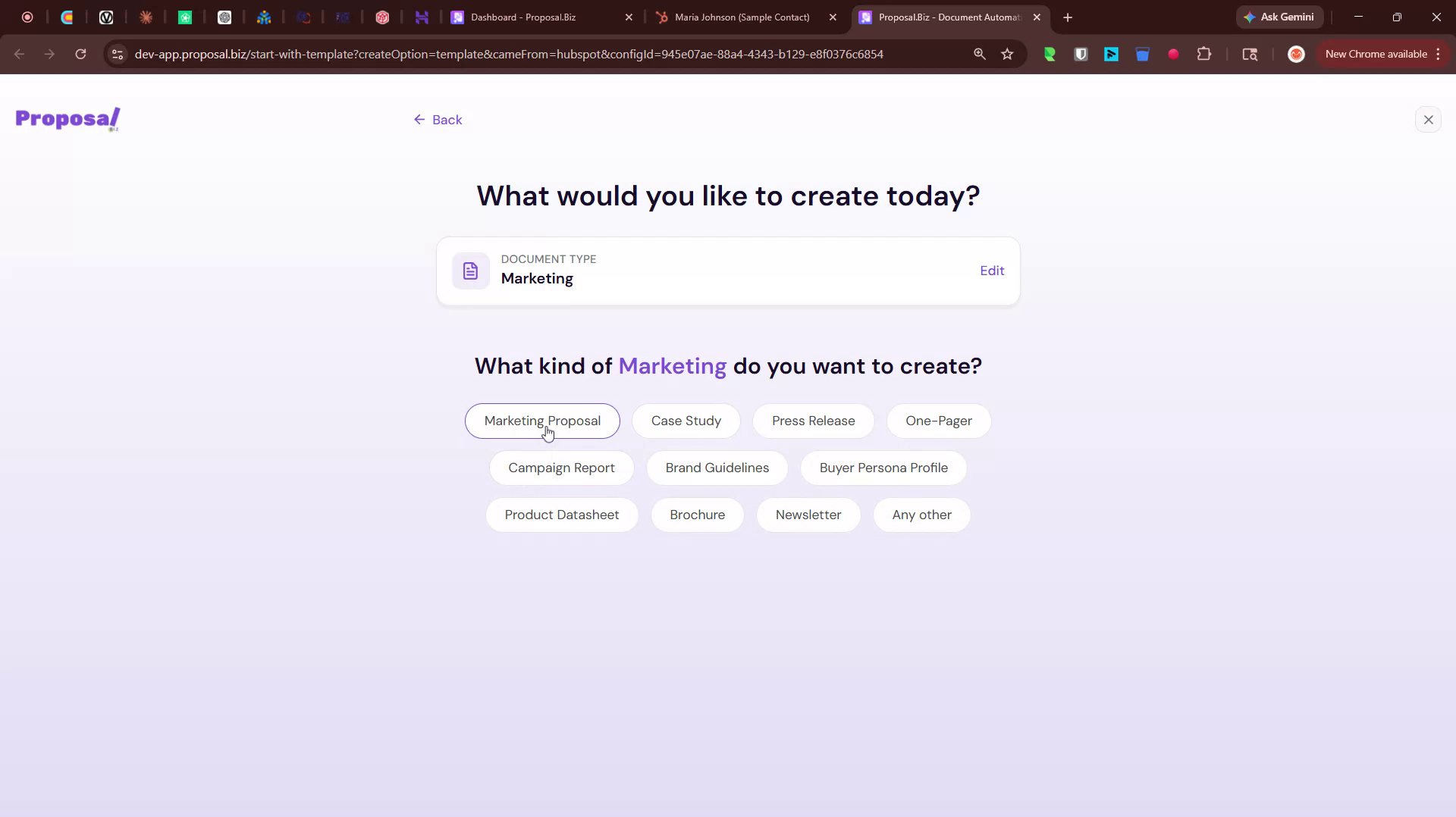
Step 9: Assign Recipients in the Document Builder
In the document builder assign the recipient for your document
Select the correct recipient from the available options
If the HubSpot contact is already added — for example Maria Johnson — make sure they are assigned to all relevant recipient fields in your document
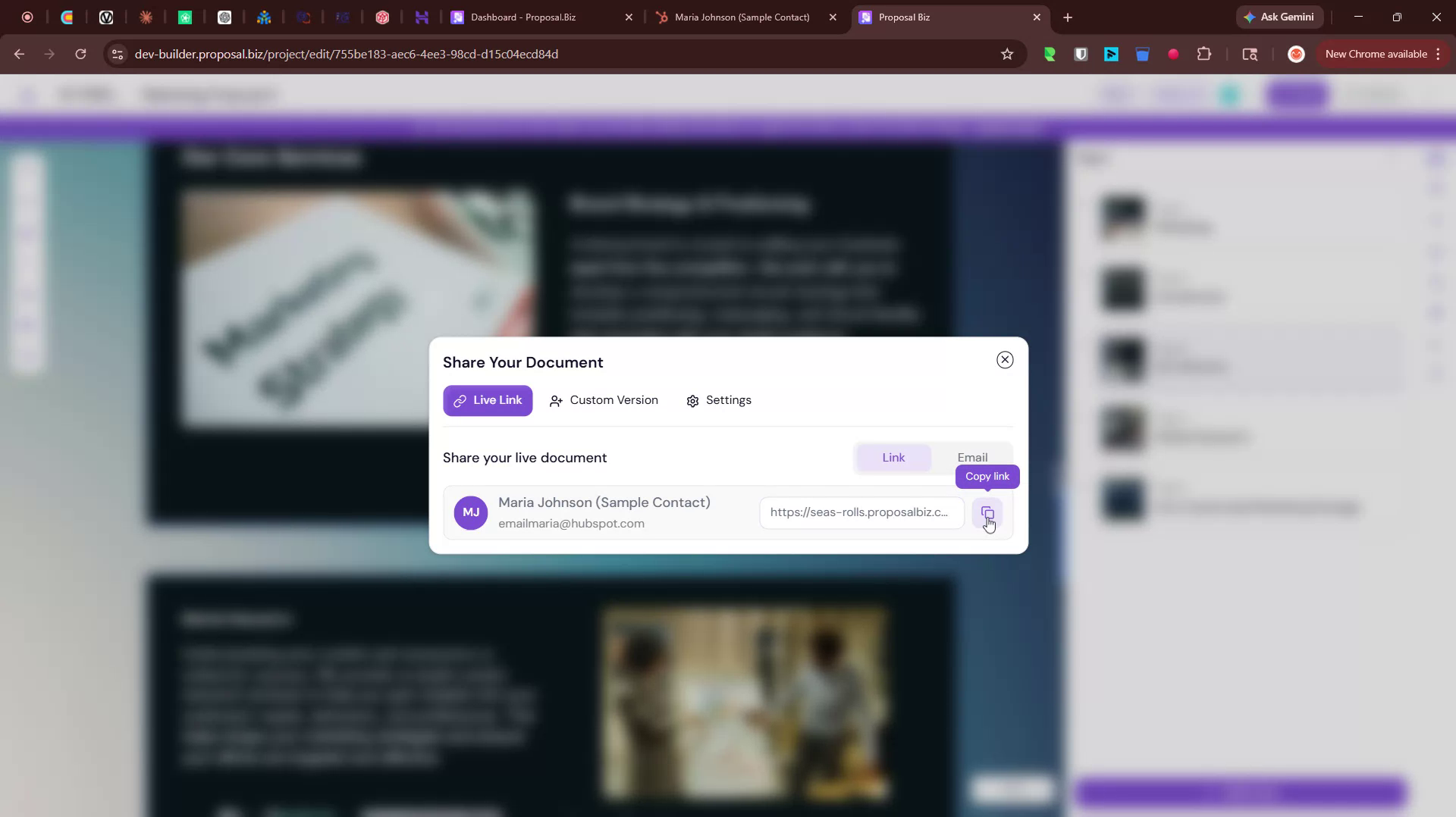
Step 10: Share the Document
When your document is ready click Share from the builder
Confirm you want to send or share the document
-
Copy the document link that is generated to share it with your recipient
Step 11: Track Your Documents
Go back to Proposal.biz to track all documents created from HubSpot. From your dashboard you can see:
Every document you have created
When each one was made
Who created it
-
The current status of each document
💡 Pro Tip Use the Proposal.biz app card inside HubSpot contact and deal records to create documents without switching between platforms. This keeps your workflow inside HubSpot and ensures recipient details are always pulled in correctly from your CRM data.
Next Steps Learn how to connect your Zoho CRM in Connecting Zoho.