

Overview
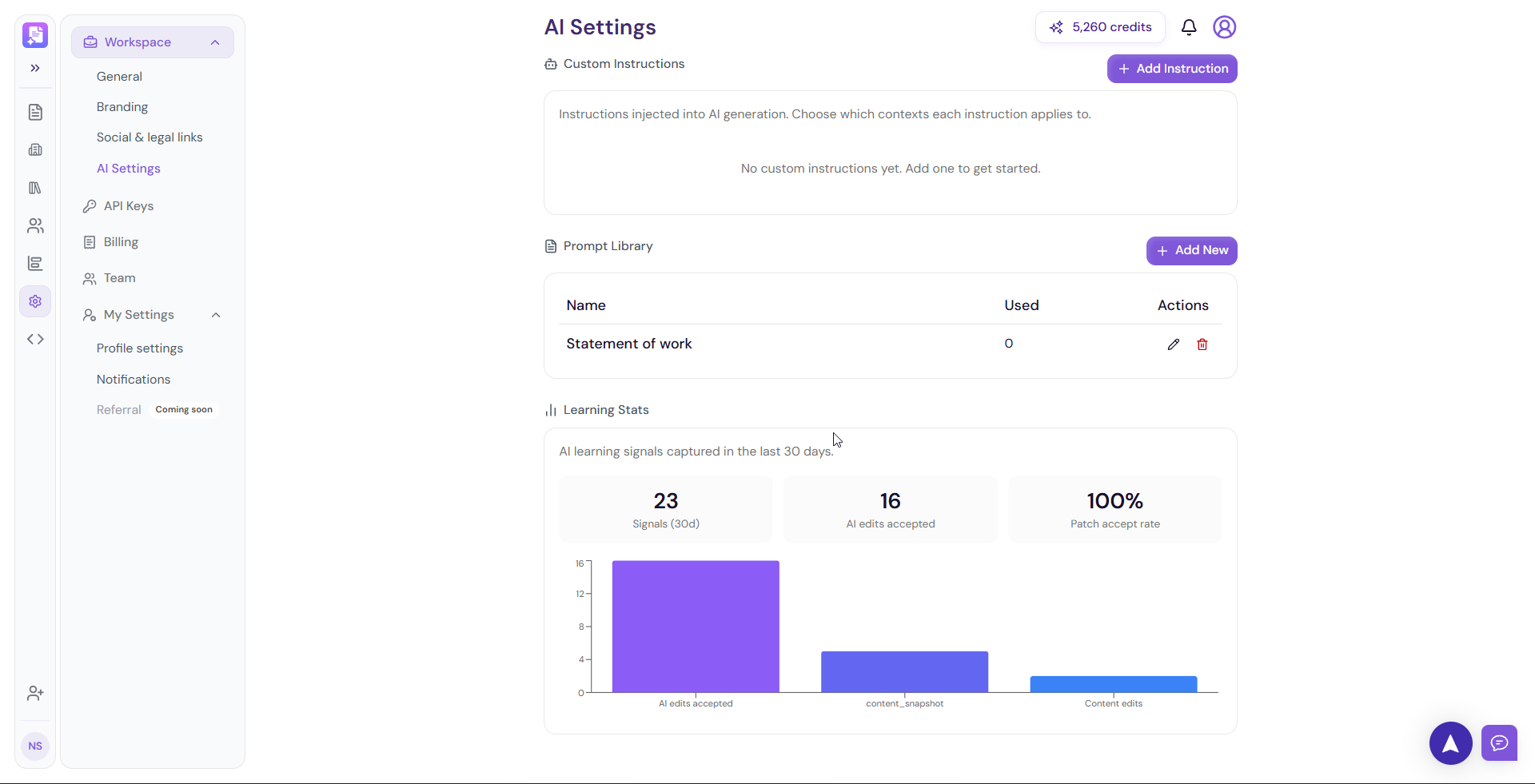
AI Settings is where you configure how Proposal.biz AI behaves across your workspace. From setting custom instructions that guide every AI generation to managing your prompt library and tracking AI learning stats this is your central control panel for getting the most out of AI on Proposal.biz.
Accessing AI Settings
Go to Settings in the left sidebar
Under Workspace click AI Settings
Custom Instructions
Custom Instructions are directives you set once that are automatically injected into every AI generation across your workspace. This ensures the AI always writes in a consistent tone, style, and format without you having to repeat your preferences every time.
Adding a Custom Instruction
Click + Add Instruction in the top right of the Custom Instructions section
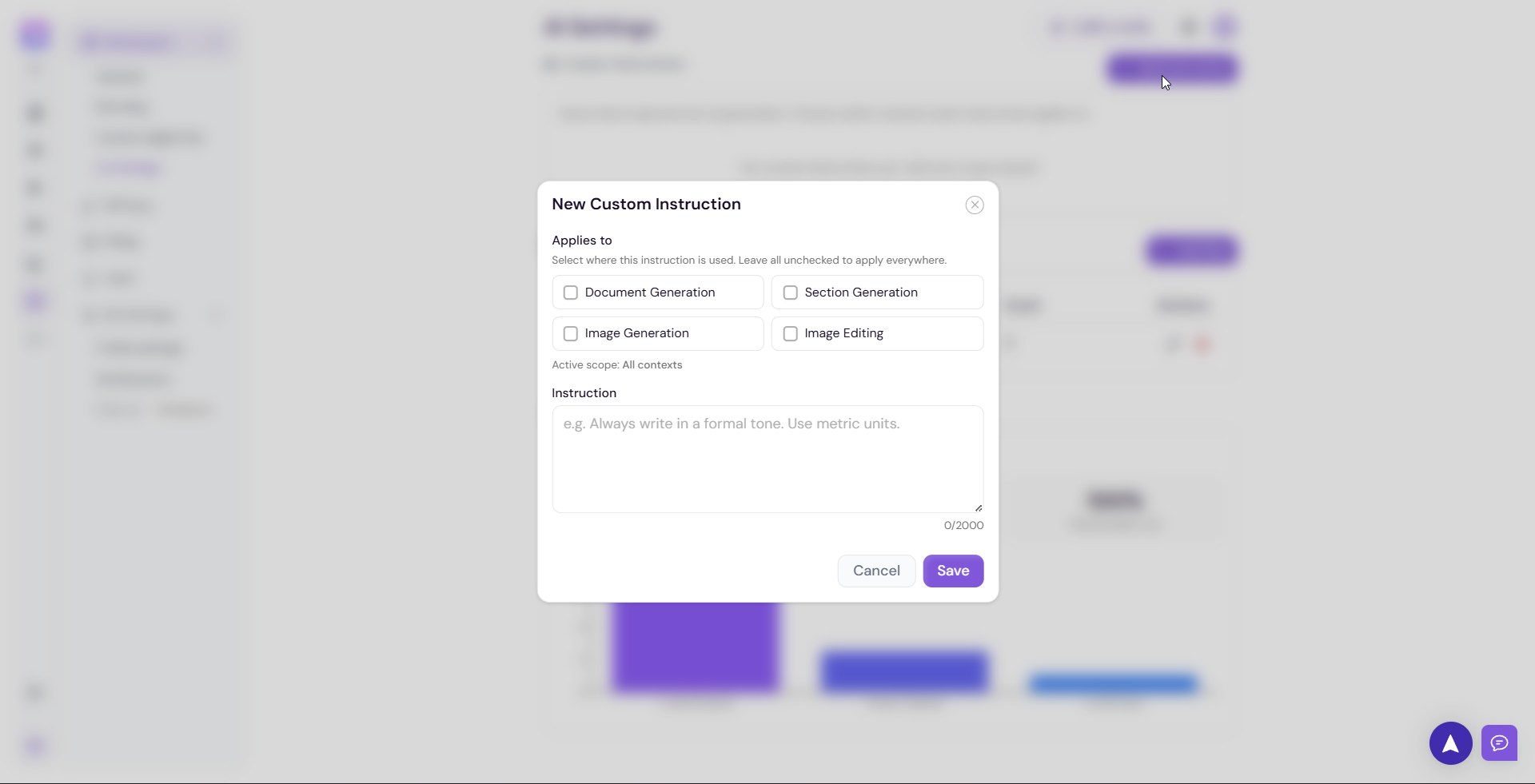
The New Custom Instruction modal will open
-
Under Applies to select the contexts where this instruction should apply:
Document Generation
Section Generation
Image Generation
Image Editing
Leave all options unchecked to apply the instruction everywhere
Enter your instruction in the Instruction field — for example "Always write in a formal tone. Use metric units."
Click Save to apply
💡 Pro Tip Use Custom Instructions to enforce your brand voice across all AI-generated content. For example "Always write in a confident, professional tone. Avoid passive voice. Use British English." so every document Nova generates sounds like it came from your team.
Managing Custom Instructions
Once saved, your custom instructions appear in the Custom Instructions list. From here you can:
Edit — Update an existing instruction
Delete — Remove an instruction you no longer need
Prompt Library
The Prompt Library is where you manage the saved prompts available when generating documents with Nova. You can add new prompts, track how often each one is used, and keep your library organized.
Adding a New Prompt
Click + Add New in the top right of the Prompt Library section
Enter your prompt name and content
Click Save to add it to the library
Managing Your Prompts
For each prompt in your library you can:
Edit — Update the prompt name or content using the pencil icon
Delete — Remove a prompt using the delete icon
The Used column shows how many times each prompt has been used — helping you identify your most effective prompts.
Learning Stats
Learning Stats shows you how the AI is performing and adapting based on your workspace activity over the last 30 days.
The following metrics are displayed:
Signals (30d) — Total AI learning signals captured in the last 30 days
AI edits accepted — Number of AI suggestions your team has accepted
Patch accept rate — Percentage of AI edits that were accepted
💡 Pro Tip Keep an eye on your Patch accept rate. A high rate means the AI is generating content that closely matches your team's expectations. If the rate drops, revisit your Custom Instructions to better align the AI with your preferred tone and style.
Next Steps Learn how to manage your workspace API access in API Keys.