

Overview
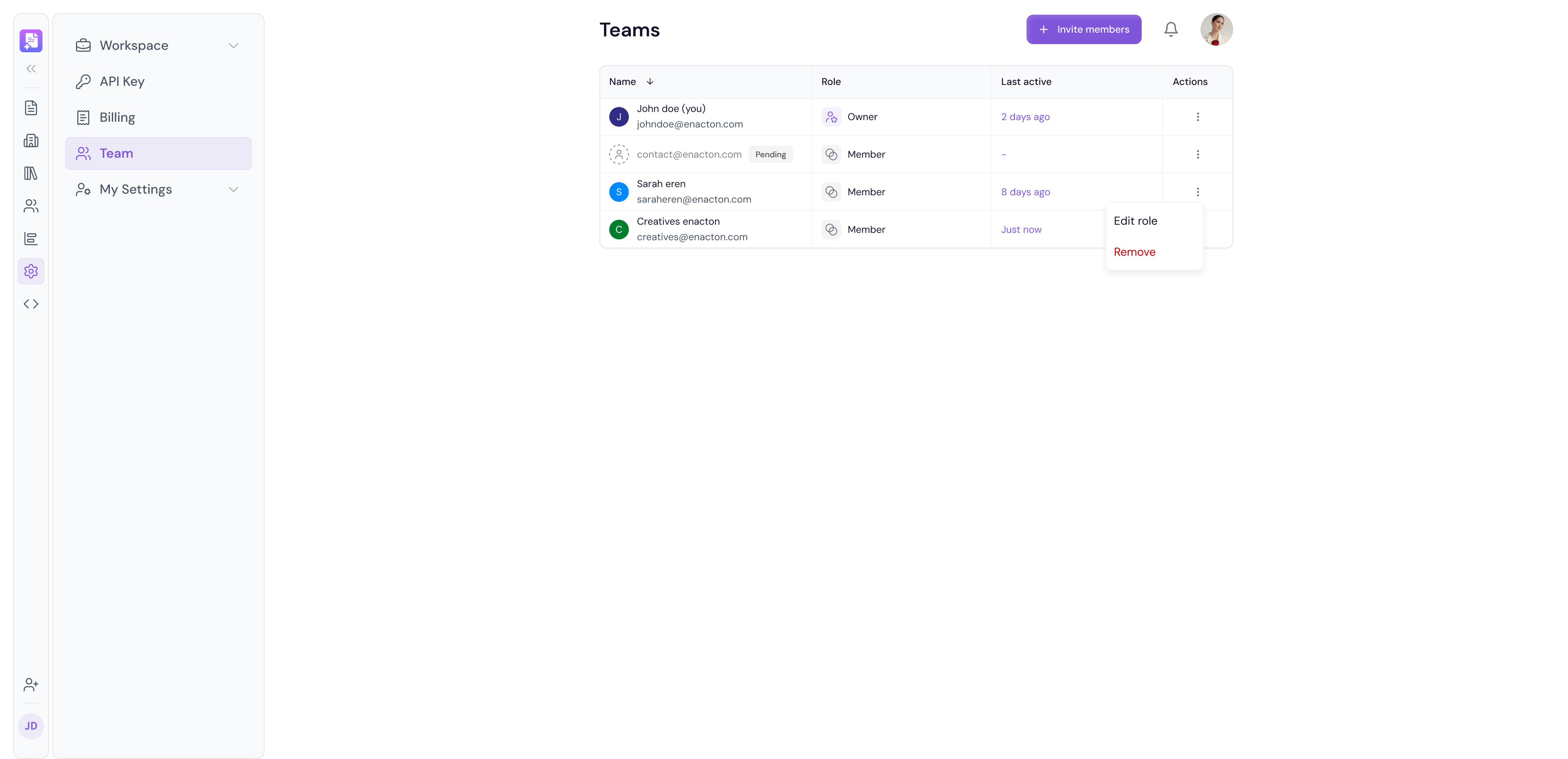
The Team page is where you manage everyone who has access to your Proposal.biz workspace. You can invite new members, manage existing members' roles and permissions, and remove access when needed all from one place.
Accessing Team Settings
Go to Settings in the left sidebar
Under Workspace click Team
Inviting Team Members
Click Invite Users
Enter the email address of the person you want to invite
Select their Role from the available options
Click Send Invite
-
The invited member will receive an email with instructions to join your workspace
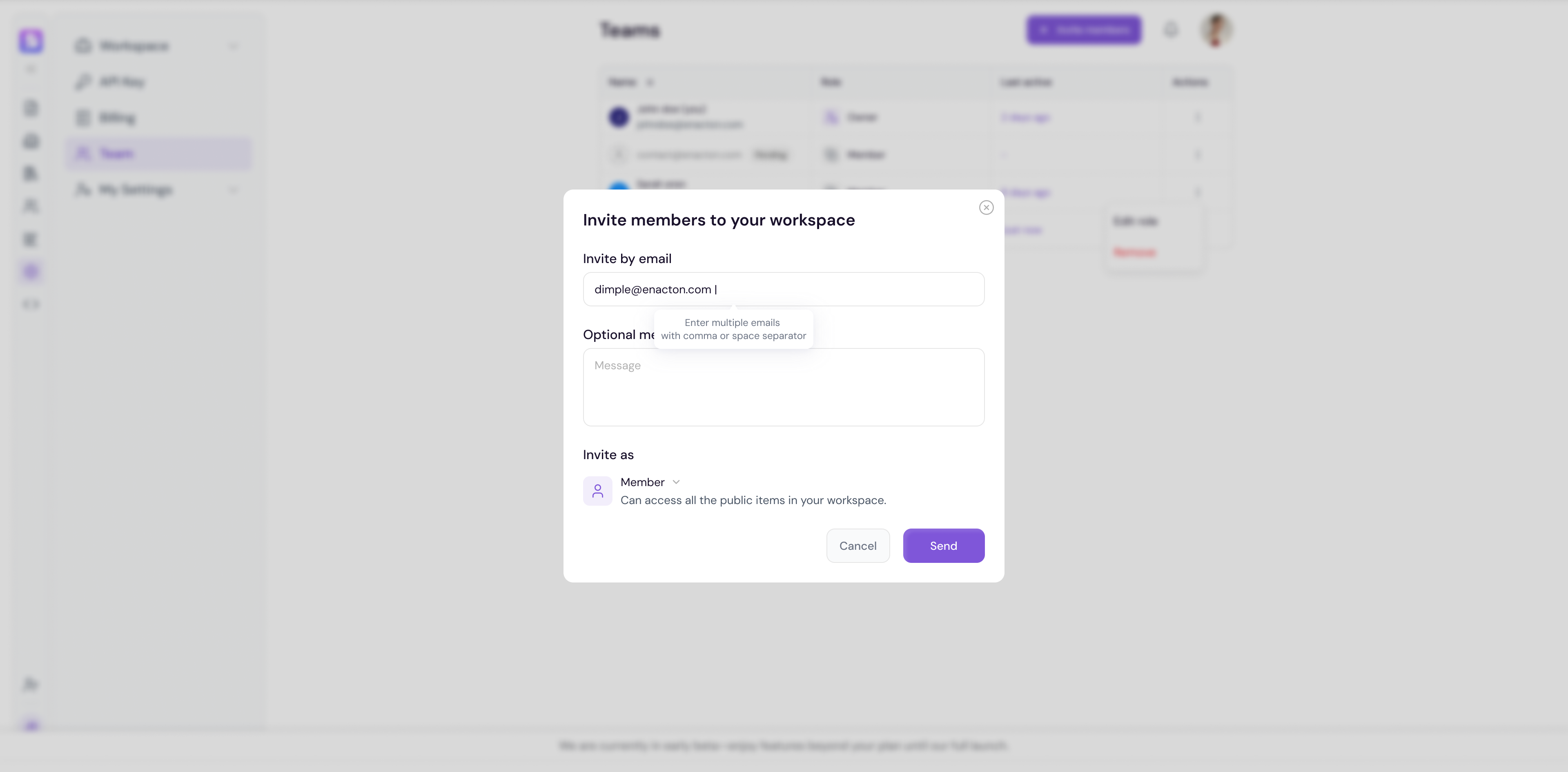
💡 Pro Tip You can invite multiple team members at once by entering multiple email addresses. This is especially useful when onboarding a new team or department to Proposal.biz.
Managing Team Members
All current members of your workspace are listed in the Team table. For each member you can see:
Name — Member's full name
Email — Member's email address
Role — Their assigned role in the workspace
Status — Whether they have accepted their invite or it is still pending
Actions — Options to manage their access
Changing a Member's Role
Find the team member in the list
Click the Role dropdown next to their name
Select the new role you want to assign
The change will be applied immediately
Removing a Team Member
Find the team member in the list
Click the Delete icon next to their name
Confirm the removal in the prompt that appears
Note Removing a team member immediately revokes their access to your workspace. Any documents they created will remain in the workspace.
Pending Invites
If a team member has not yet accepted their invite, their status will show as Pending. You can:
Resend the invite if they have not received it
Cancel the invite if it is no longer needed
💡 Pro Tip If a pending invite has not been accepted after a few days, ask the recipient to check their spam folder. You can also resend the invite directly from the Team page.
Next Steps Learn how to update your personal account details in Profile Settings.