

Overview
Proposal.biz gives you multiple ways to add images to your documents — from your own library and uploads to AI-generated images and free stock photos from Pixels. Once placed, you can edit, replace, or regenerate images directly on the canvas.
Adding an Image
To add an image to your document:
Click on an existing image block on the canvas, or add a new image block from Basic Blocks in the left panel
The image panel will open showing four ways to add an image
Library
Browse images that have already been uploaded to your Proposal.biz workspace.
Click the Library tab in the image panel
Browse your existing uploaded images
-
Click on any image to insert it into your document
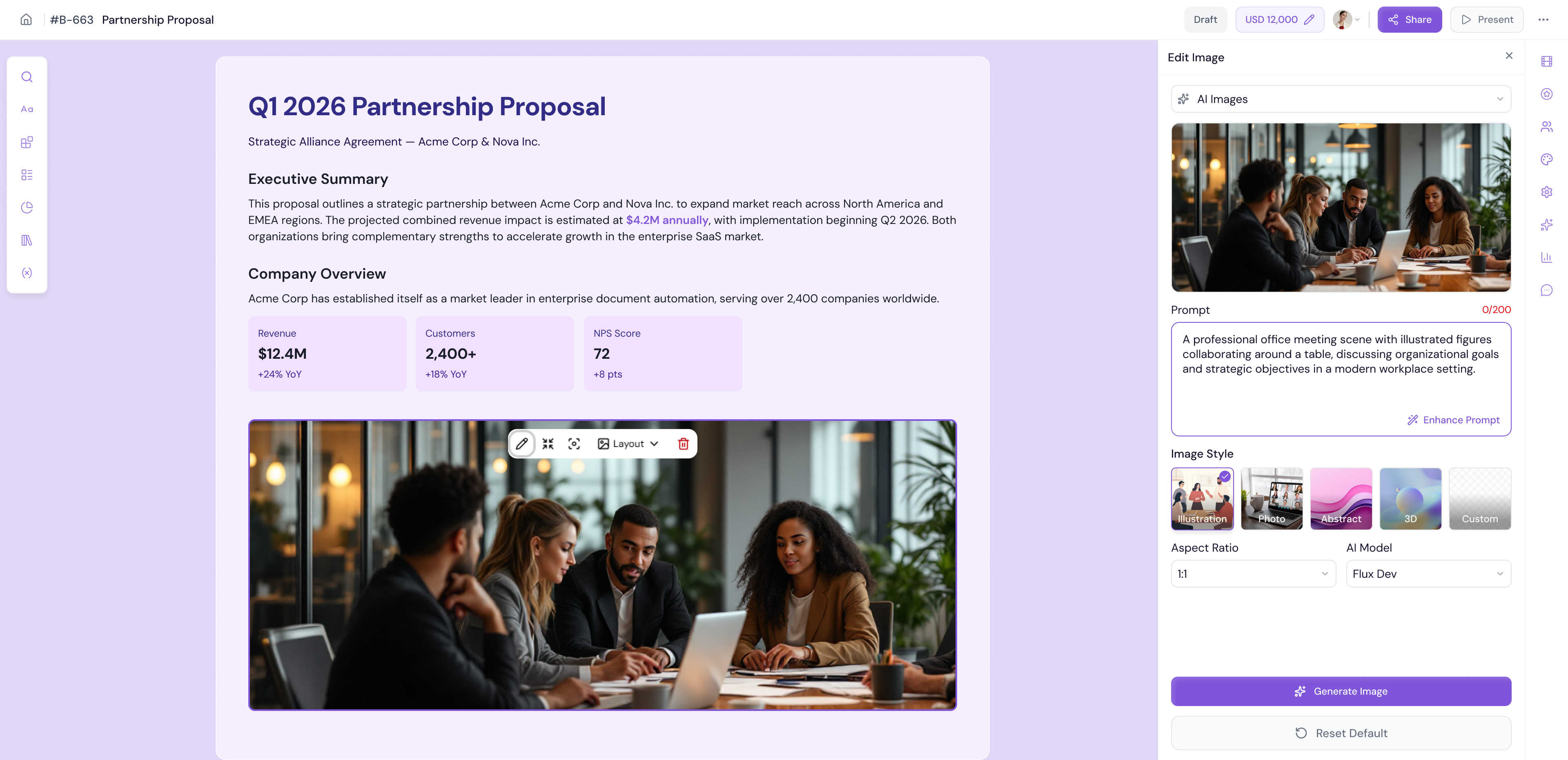
💡 Pro Tip Keep your image library organized by uploading frequently used images — such as team photos, product images, and brand assets — so they are always ready to use across any document.
Upload or URL
Upload a new image from your device or paste an image URL from the web.
Uploading from your device:
Click the Upload or URL tab in the image panel
Drag and drop your file into the upload area, or click to browse your files
The image will be added to your document once uploaded
Using an image URL:
Click the Upload or URL tab in the image panel
Paste the image URL in the field provided
Click Add to insert the image into your document
AI Images
Generate a brand new image using AI directly inside the editor.
Click the AI Images tab in the image panel
Describe the image you want to generate in the prompt field
Click Generate to create the image
-
Review the generated options and click on your preferred image to insert it into your document
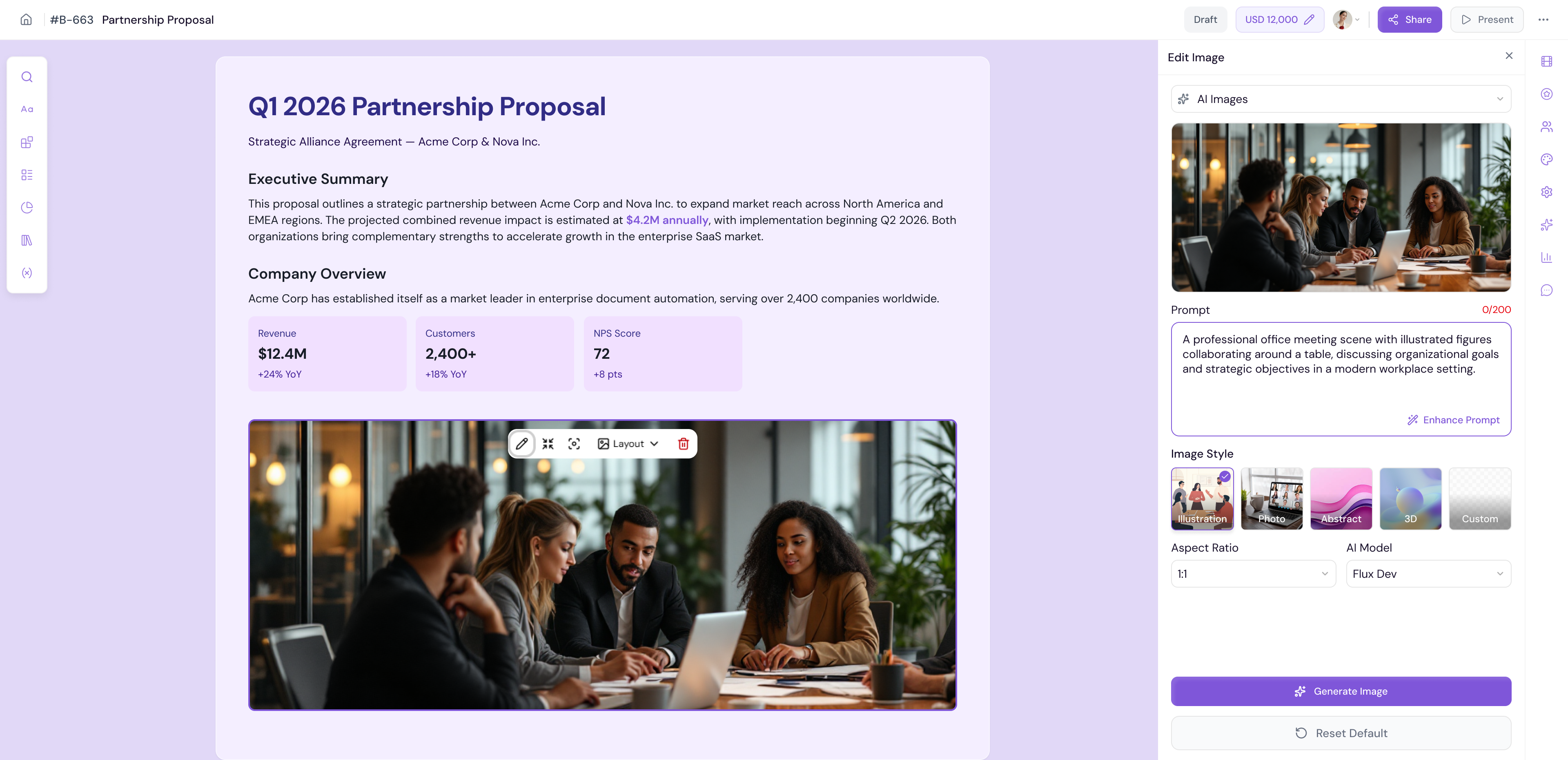
💡 Pro Tip Be specific with your AI image prompts. Instead of "an office", try "a modern open-plan office with natural light and a team collaborating at a whiteboard." The more detail you provide, the more accurate the generated image will be.
Pixels Images
Browse and insert free, high-quality stock images from Pixels — without leaving the editor.
Click the Pixels Images tab in the image panel
Use the search bar to find images by keyword
-
Browse the results and click on any image to insert it into your document
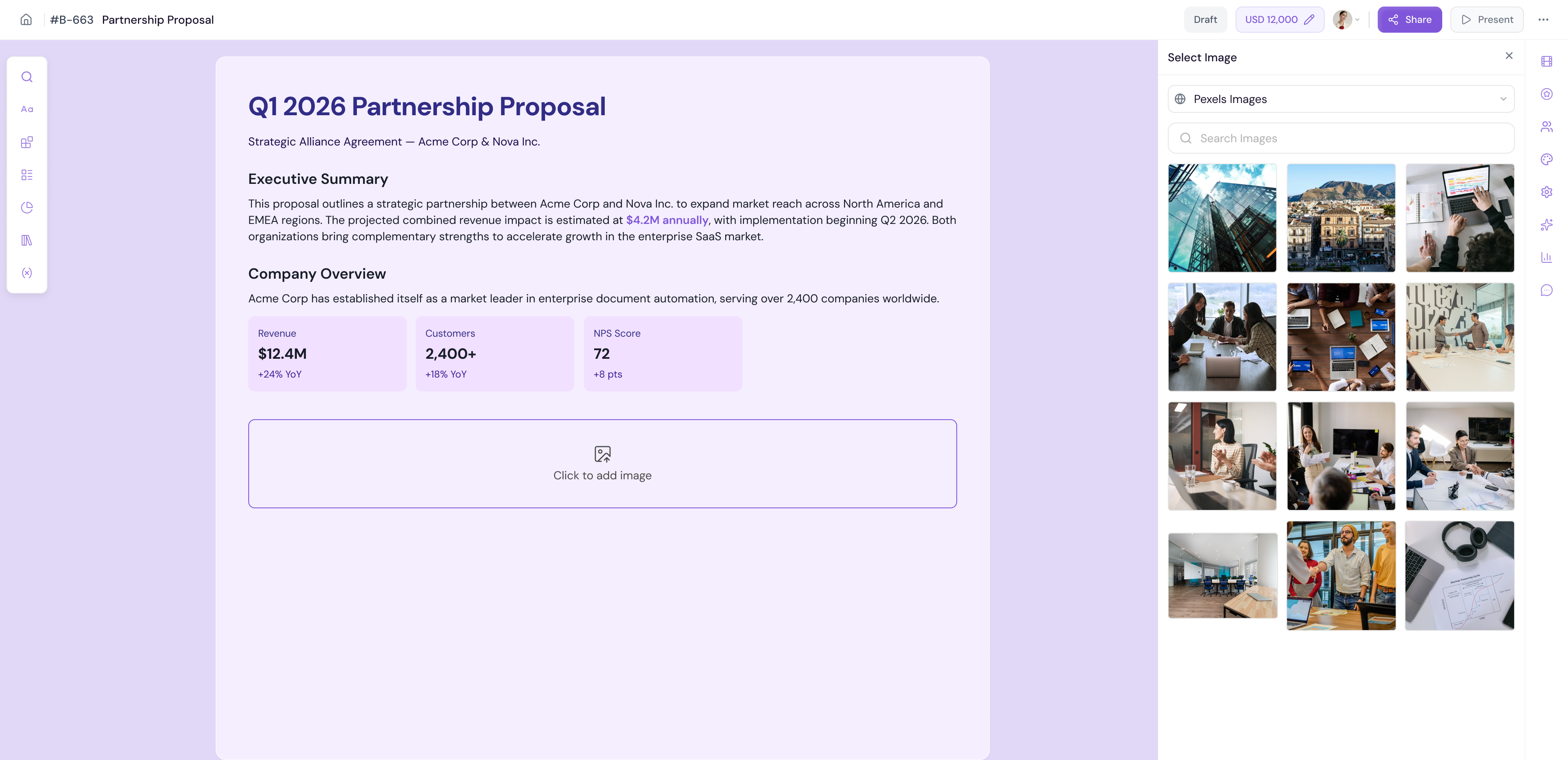
Note All images from Pixels are free to use and do not require attribution. They are a great option when you need professional visuals quickly.
Editing an Image
Once an image is placed on your canvas, you can click on it to access editing options.
Click on any image on the canvas to select it
The image editing panel will open on the right side
-
From here you can:
Replace — Swap the image with a different one using any of the four methods above
Resize — Adjust the size of the image
Reposition — Move the image within its container
Crop — Adjust the visible area of the image
Remove — Delete the image from the canvas
Editing an AI-Generated Image
If the image was generated by AI, you get additional editing options:
Click on the AI-generated image to select it
The editing panel will open showing AI-specific options
-
You can:
Regenerate — Generate a new image using the same or a modified prompt
Edit prompt — Adjust the original prompt to refine the image
Replace — Swap it with a different image from Library, Upload, AI, or Pixels
-
Remove — Delete the image from the canvas
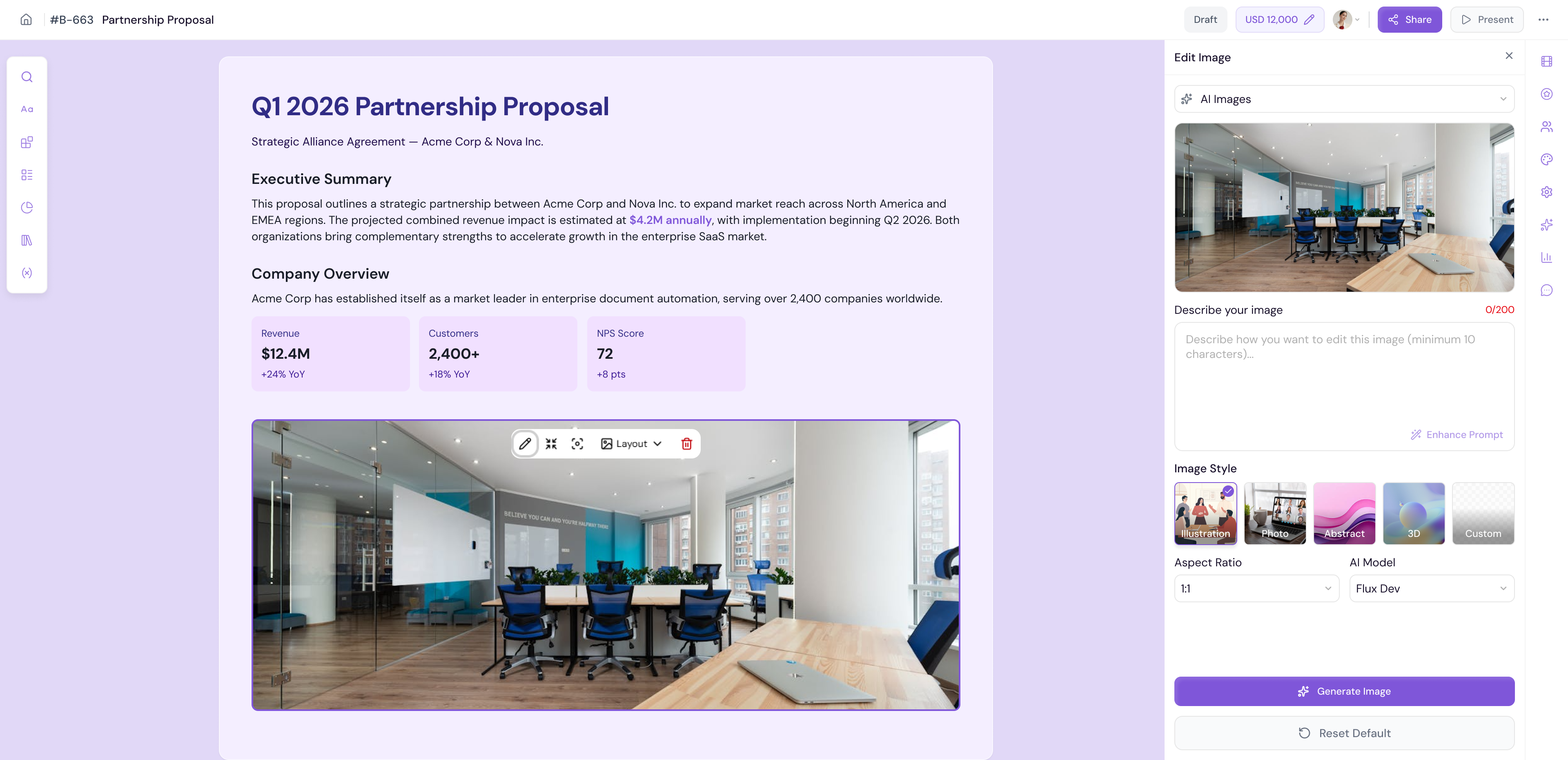
💡 Pro Tip If an AI-generated image is close to what you need but not quite right, use Edit prompt to make small adjustments rather than starting from scratch. This often gets you to the perfect result faster than regenerating completely.
Next Steps Learn how to use the right panel to manage AI assistance, recipients, themes, and more in The Right Panel.