

Overview
My Templates is where all the templates you have manually saved from the editor are stored. Once saved, any document you have worked on can become a reusable template so you and your team can launch new documents faster without starting from scratch every time.
How Templates Get Saved
Templates do not appear here automatically. You need to manually save them from inside the editor.
To save a document as a template:
Open any document in the editor
Click the three-dot menu (⋮) in the top right corner of the editor
Select Save as Template from the dropdown
The Save As Template modal will appear
Enter a name for your template in the Template Name field
-
Click Save as Template to confirm
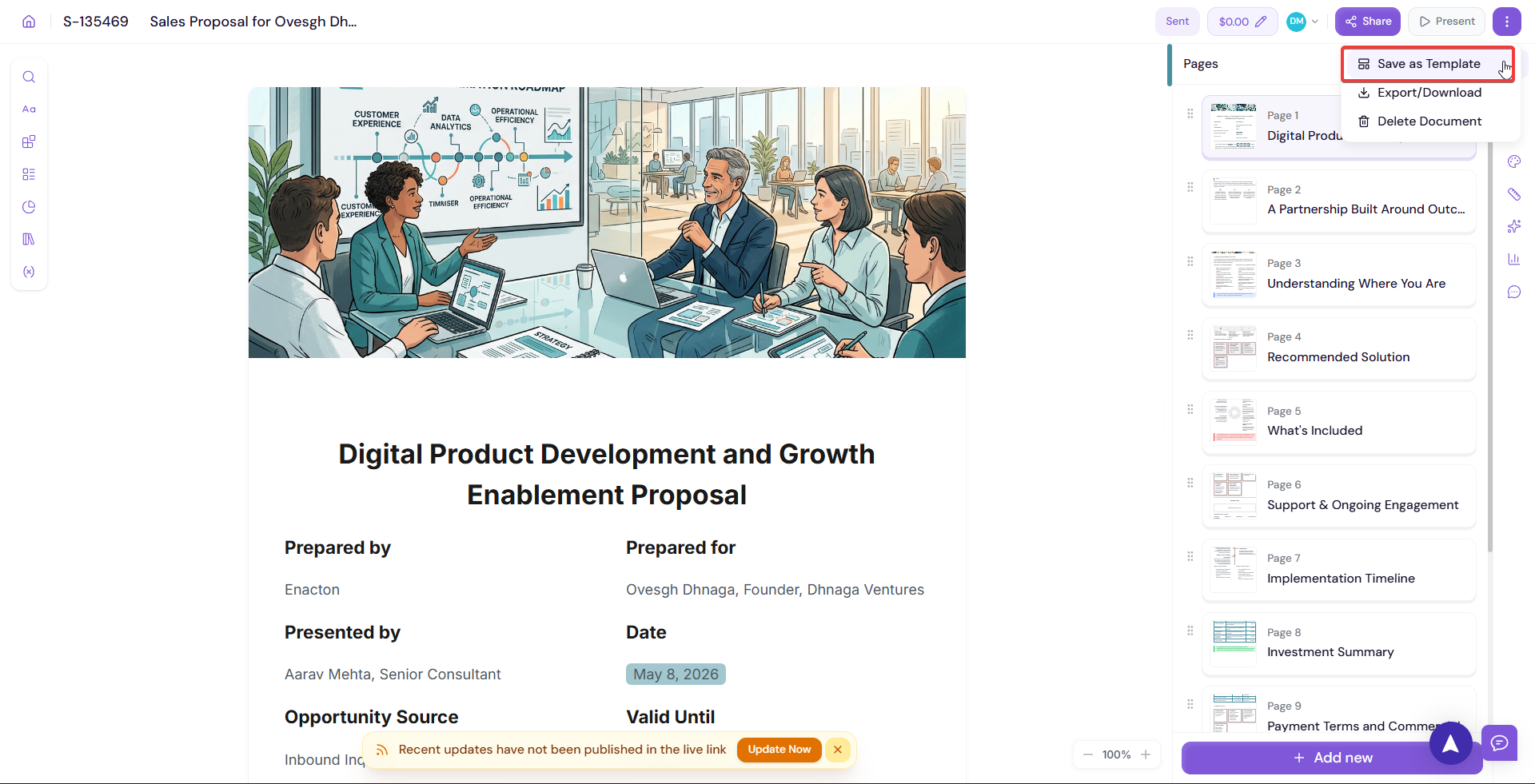
Once saved, the template will appear in My Templates and will be available to use when creating a new document.
Managing Your Templates
From My Templates you can:
Use — Start a new document using this template
Preview — Review the full template before opening it in the editor
Delete — Remove a template you no longer need
💡 Pro Tip Once you have a document structure you are happy with such as a winning proposal or a frequently used SOW save it as a template immediately. Your whole team can then use it as a starting point and maintain consistency across all client-facing documents.
Next Steps Explore pre-built sections available to all users in Public Sections.