

Overview
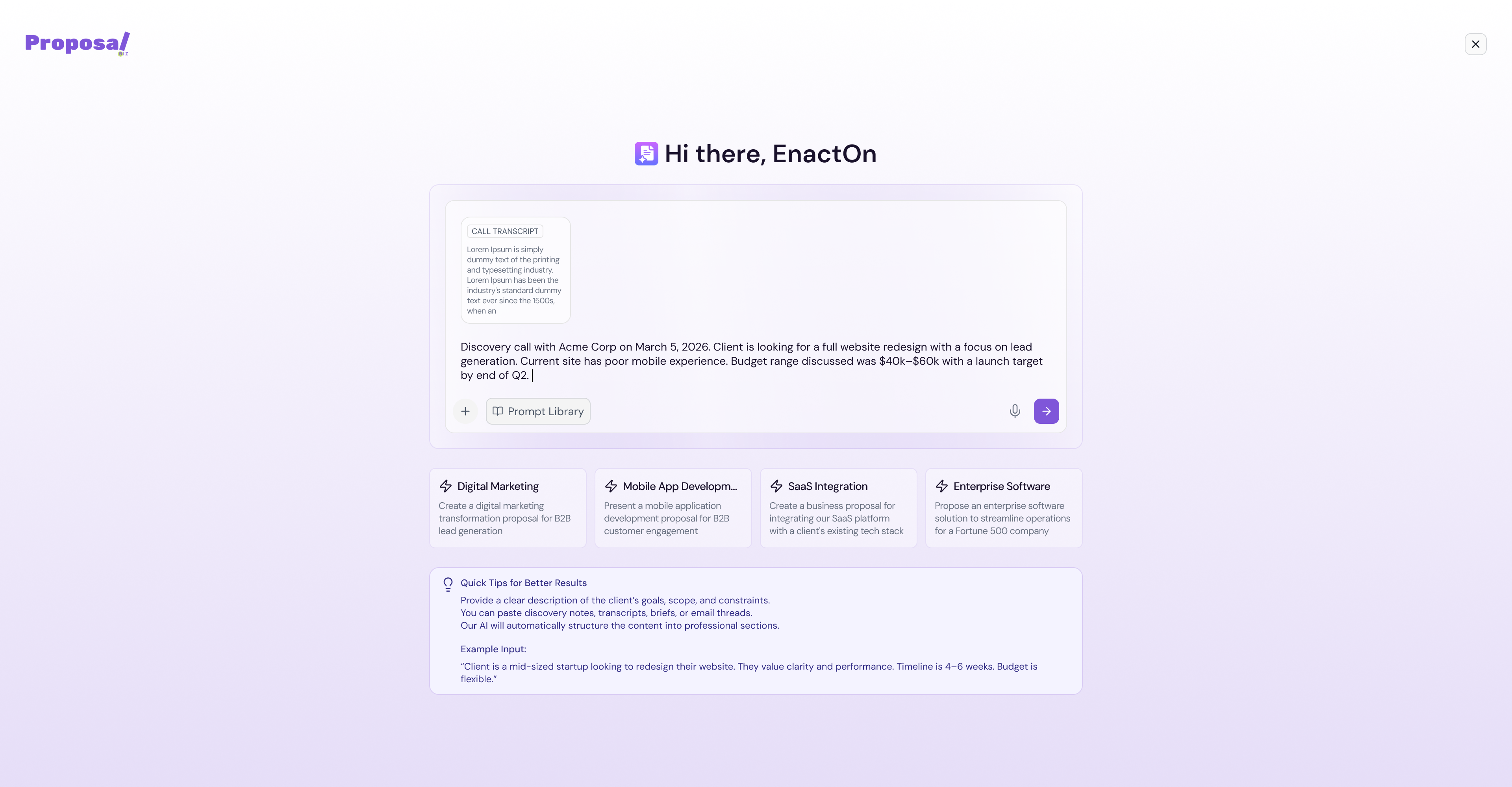
Proposal.biz comes with a built-in AI that turns your ideas into a structured, ready-to-edit document in minutes. Simply describe what you need, attach any relevant context and will generate a complete document for you saving you hours of writing and formatting from scratch.
Getting Started
From your dashboard click + Create New
Select Generate with AI from the dropdown
The AI chat will open
Writing Your Prompt
Type a description of the document you want to create in the prompt field
Include the document type, purpose, target audience, and any key details you want covered
Click Generate to let AI build your document
💡 Pro Tip The more context you give Nova, the better your first draft will be. For example, instead of typing "write a proposal", try "write a service proposal for a digital marketing agency targeting an e-commerce client, covering SEO, paid ads, and monthly reporting."
Adding Context to Your Prompt
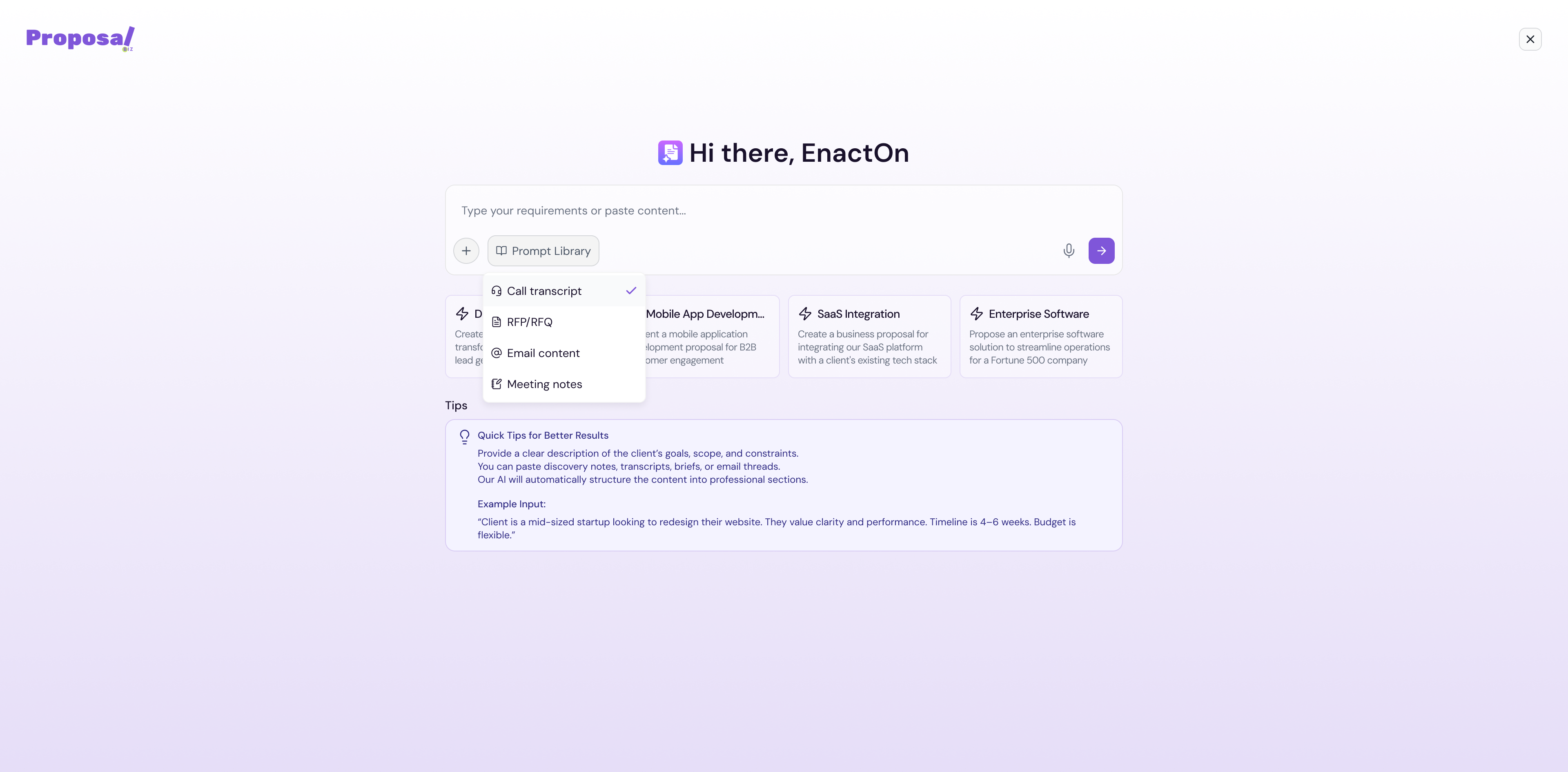
To help Nova generate a more accurate and personalized document, you can provide additional context beyond just the prompt. Nova allows you to attach:
Email conversations — Paste in relevant email threads related to the document
Call transcripts — Add transcripts from sales or discovery calls
Meeting notes — Include notes from client or team meetings
Any other relevant background information you want Nova to reference
This helps Nova understand the full context of your requirement and produce a first draft that is much closer to what you actually need.
💡 Pro Tip The more context you feed AI whether it is a client email thread, a call transcript, or meeting notes the more tailored and accurate your generated document will be. This is especially useful for client-facing proposals where specific details matter.
Using the Prompt Library
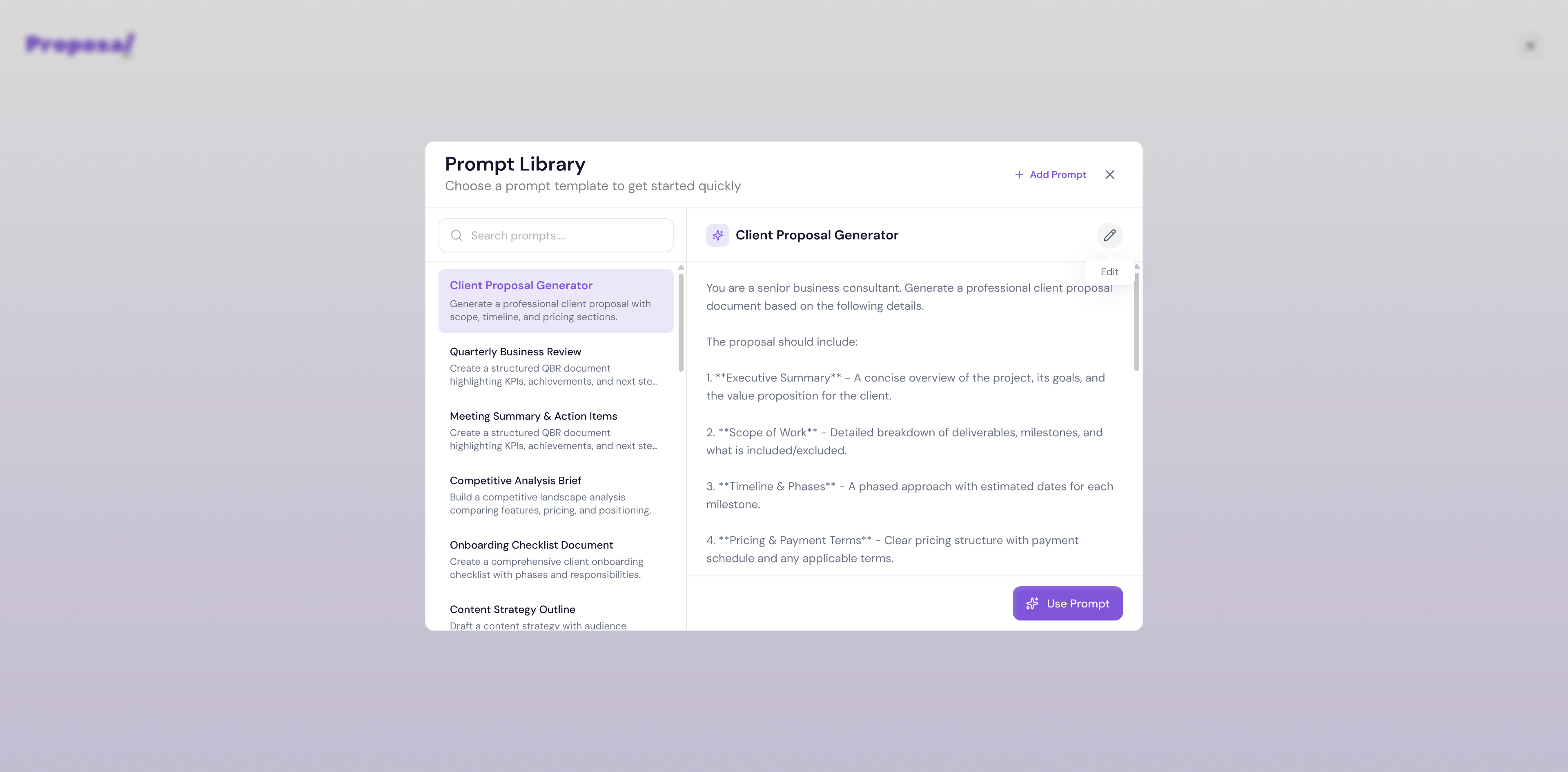
If you are not sure what to write, the Prompt Library has a collection of ready-made prompts you can use as a starting point.
Click Prompt Library on the Nova screen
Browse or search for a prompt that matches your document type
Select a prompt to load it into the input field
-
Edit it to fit your specific needs and click Generate
💡 Pro Tip Use the search bar inside the Prompt Library to quickly find prompts relevant to your industry or document type.
Reviewing and Editing AI Output
Once Nova finishes generating your document:
Review the generated content on screen
If you are happy with the output click Design Document to open it in the editor
Note Nova uses your brand information extracted during onboarding to personalize the generated content. If your output does not reflect your brand accurately, check your branding settings under Settings → Branding.
Next Steps Once your document opens in the editor, you can refine it manually or continue using the AI assistant to make further changes.