

Overview
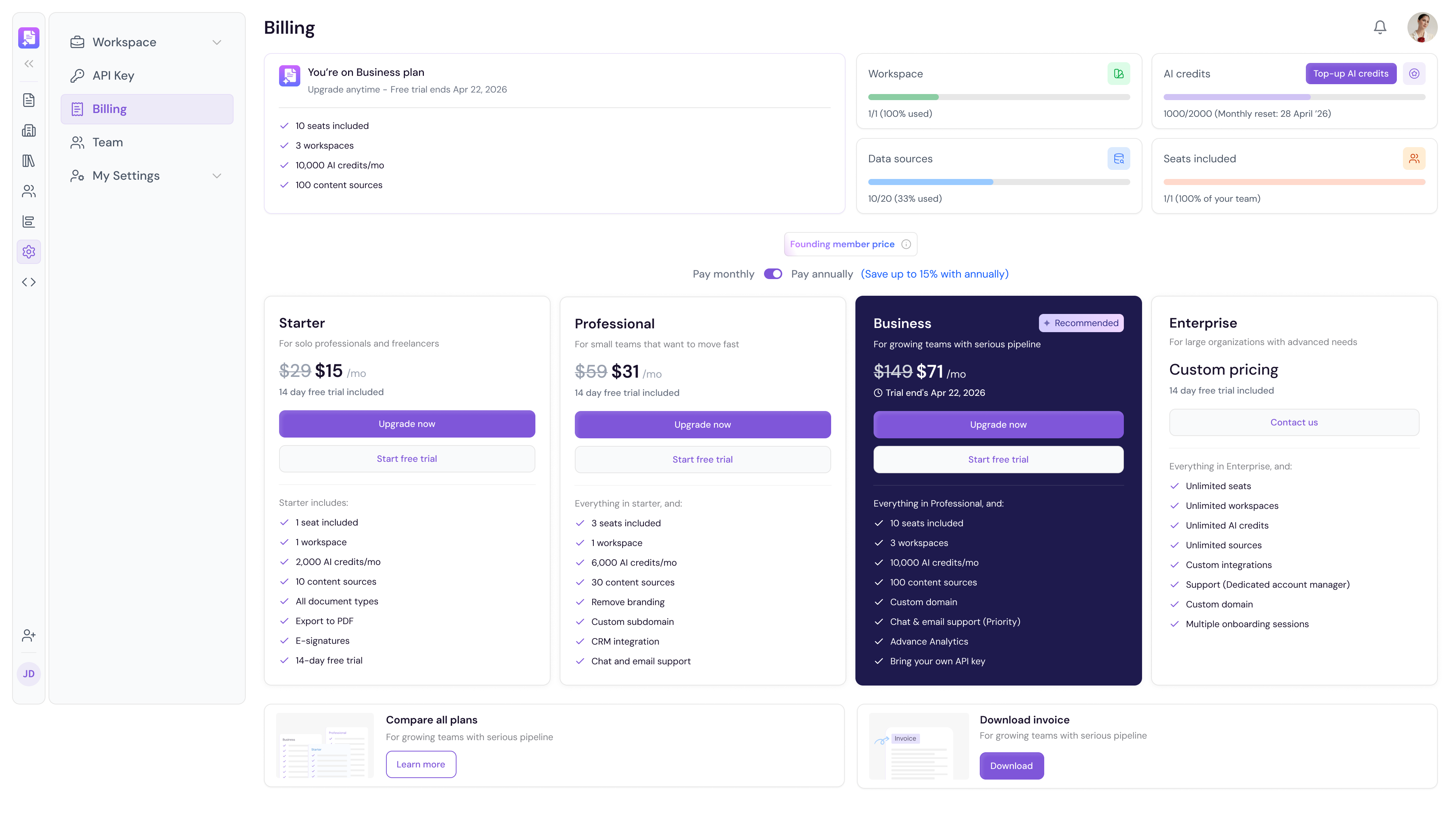
The Billing page is where you manage your Proposal.biz subscription plan, monitor your workspace usage, top up AI credits, and download invoices. You can upgrade your plan, start a free trial, or switch between monthly and annual billing all from one place.
Accessing Billing
Go to Settings in the left sidebar
Under Workspace click Billing
Your Current Plan
At the top of the Billing page you will see a summary of your active plan including:
Your current plan name
Key plan features included
Your free trial end date if applicable
Usage Overview
The right side of the page shows your current workspace usage across three key areas:
Workspace — Number of workspaces used out of your plan limit
Data Sources — Number of data sources used out of your plan limit
AI Credits — Monthly AI credits used with your reset date
Seats Included — Number of team seats used out of your plan limit
Topping Up AI Credits
If you are running low on AI credits before your monthly reset:
Click Top-up AI credits next to the AI credits usage bar
Select the number of credits you want to add
Confirm your purchase
Available Plans
Proposal.biz offers four plans to fit teams of all sizes. You can toggle between Pay monthly and Pay annually — save up to 15% with an annual subscription.
💡 Pro Tip Switch to Pay annually to save up to 15% on your subscription. If your team is growing, upgrading to the Business plan gives you 3 workspaces and priority support making it easier to manage multiple clients or projects simultaneously.
Upgrading Your Plan
Find the plan you want to upgrade to
Click Upgrade now
Follow the on-screen steps to complete your purchase
To try a plan before committing:
Click Start free trial under your preferred plan
Your 14-day free trial will begin immediately
Comparing Plans
To see a full side-by-side breakdown of all plan features:
Scroll to the bottom of the Billing page
Click Learn more under Compare all plans
Downloading Your Invoice
Scroll to the bottom of the Billing page
Click Download under Download invoice
Your invoice will download as a PDF
Next Steps Learn how to manage your team members and roles in Team.