

Overview
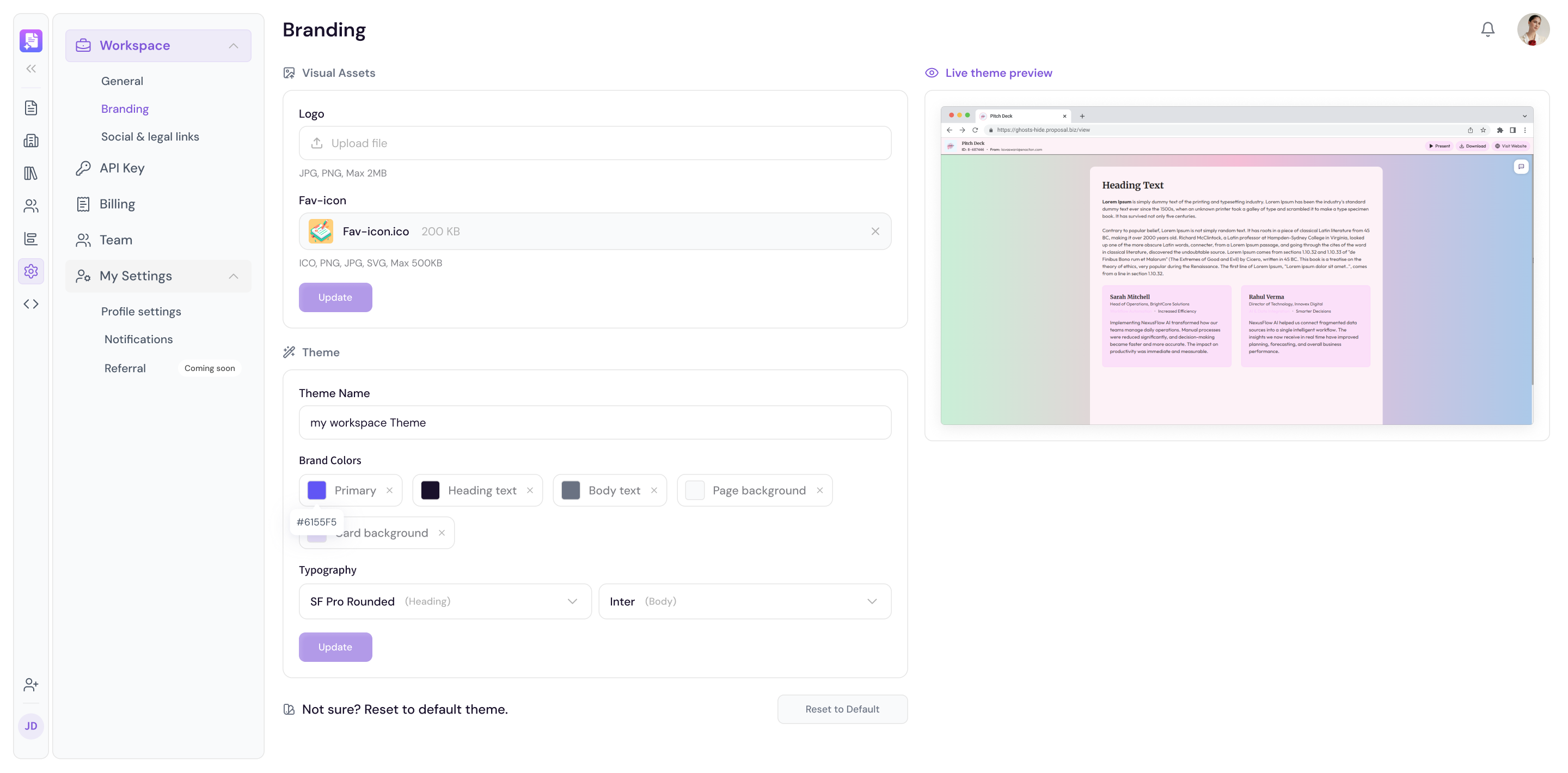
Branding settings is where you manage your workspace's visual identity on Proposal.biz. Your logo, brand colours , typography, and favicon are configured here and once set, they are automatically applied across all your documents to keep everything consistent and on-brand.
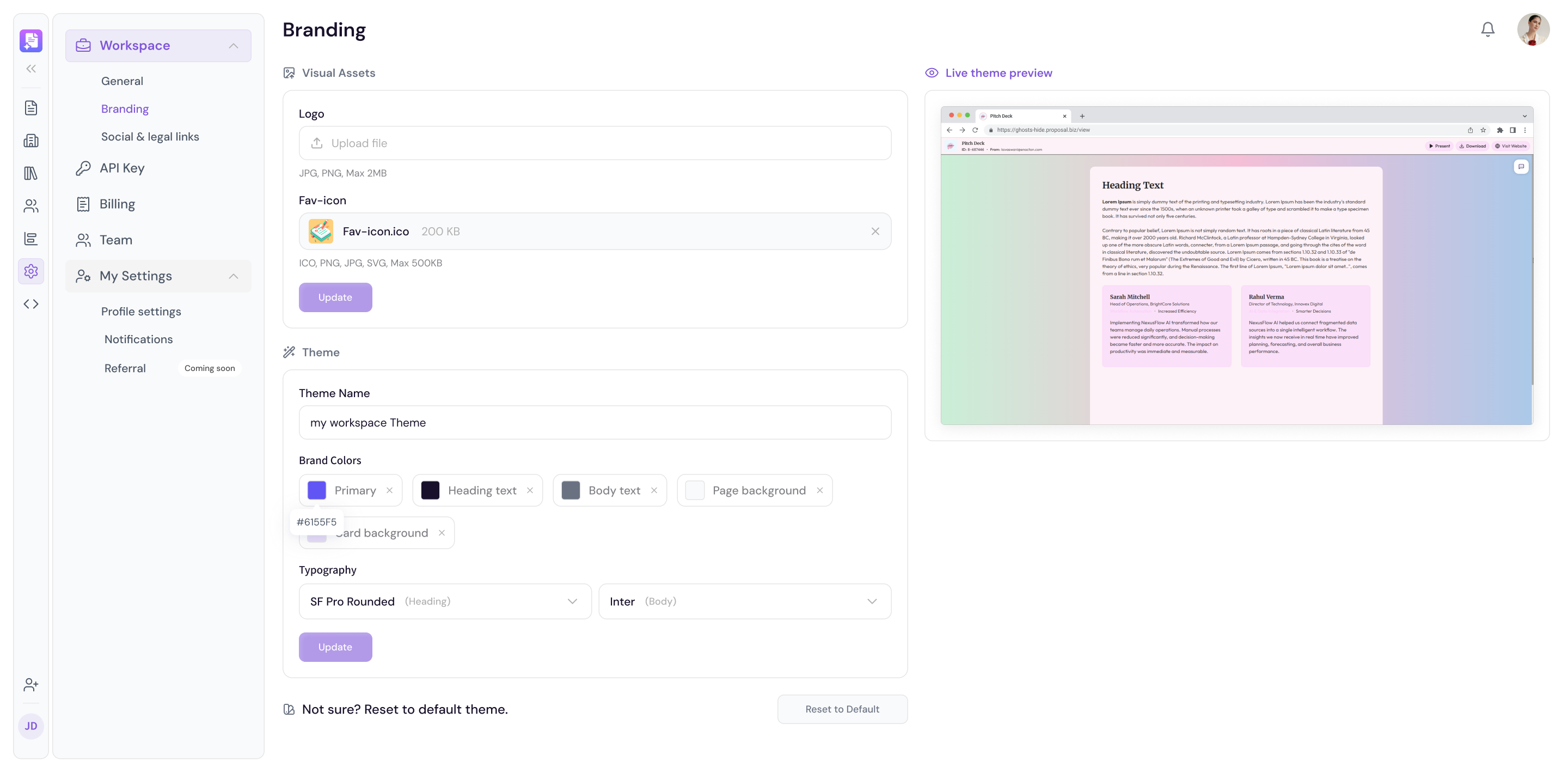
Accessing Branding Settings
Go to Settings in the left sidebar
Click Branding
Uploading Your Logo
Click on the Logo upload area
Select your logo file from your device
Click Save to apply
Note For best results upload a high-resolution PNG or SVG file with a transparent background.
Uploading Your Favicon
Click on the Favicon upload area
Select your favicon file from your device
Click Save to apply
Setting Your Brand colours
Click on the colours swatch you want to update
Enter your brand colours using a HEX, RGB, or HSL value
Repeat for all brand colours in your palette
Click Save to apply
Setting Your Typography
Select your preferred Heading Font from the dropdown
Select your preferred Body Font from the dropdown
Click Save to apply
💡 Pro Tip Your branding settings are automatically applied to all new documents you create. If you update your branding at any point, existing documents will not change automatically you will need to reapply the theme inside the editor for those documents.
Brand Extracted During Onboarding
If you entered your website URL during onboarding, Proposal.biz will have already populated your branding settings with your extracted logo, colours, and typography. Review these to make sure everything looks accurate and make any adjustments needed.
Next Steps Learn how to set up a custom domain for your documents in Custom Domain.