

Overview
Social & Legal Links is where you add your company's social media profiles and legal page URLs to your Proposal.biz workspace. Once added, these links can be used across your documents to keep your brand presence consistent and your legal information easily accessible to recipients.
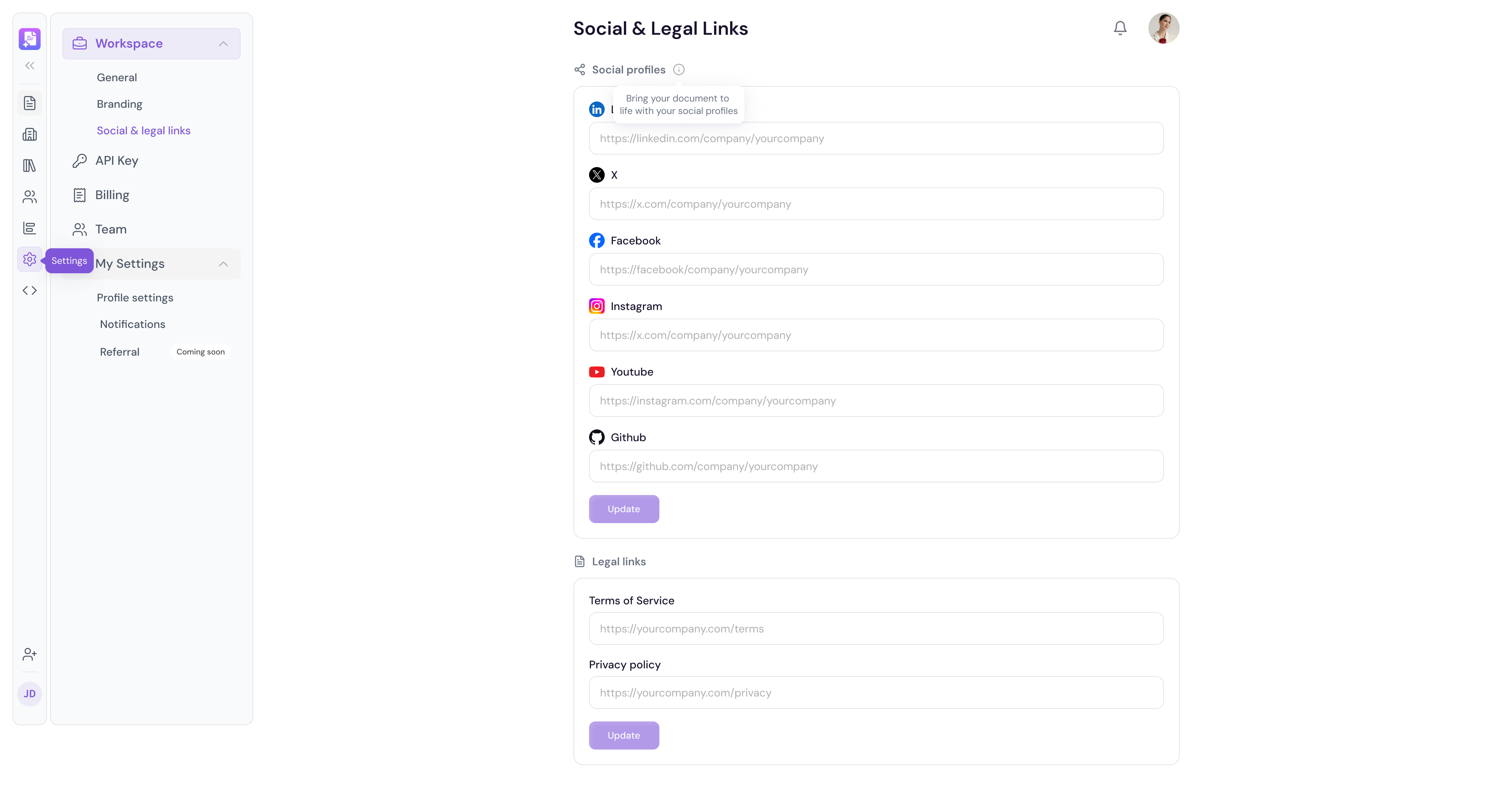
Accessing Social & Legal Links
Go to Settings in the left sidebar
Under Workspace click Social & Legal Links
Adding Your Social Profiles
Enter your company URL for each social platform you are active on:
LinkedIn — https://linkedin.com/company/yourcompany
Facebook — https://facebook.com/yourcompany
Instagram — https://instagram.com/yourcompany
Youtube — https://youtube.com/c/yourcompany
Github — https://github.com/yourcompany
Once you have entered your links click Update to save.
[Insert screenshot: Social & Legal Links — Social Profiles section with all platform fields visible]
Note You do not need to fill in all platforms — only add the ones your company is active on.
Adding Your Legal Links
Scroll down to the Legal Links section and enter the URLs for your:
Terms of Service — https://yourcompany.com/terms
Privacy Policy — https://yourcompany.com/privacy
Once entered click Update to save.
Using Social Links in Your Documents
Once your social profiles are saved, they are available as a Content Master block directly inside the editor. This means you can insert your social links into any document without having to type them out manually every time.
To use your social links in a document:
Open any document in the editor
Go to the Left Panel
Navigate to the Content Master tab
Find the Social Profiles block
Click to insert it into your document
💡 Pro Tip Add your social links to your proposal footer or closing section using the Content Master block. It keeps your documents looking complete and makes it easy for recipients to connect with you after reviewing your proposal.
Next Steps Learn how to configure your AI preferences in AI Settings.