

Overview
Every document you create on Proposal.biz — whether generated with AI, built from a template, imported, or started from blank — opens in the same builder. The builder is your workspace for building, customizing, and finalizing documents before sharing them with recipients.
This article walks you through the builder interface so you know where everything is before you start working.
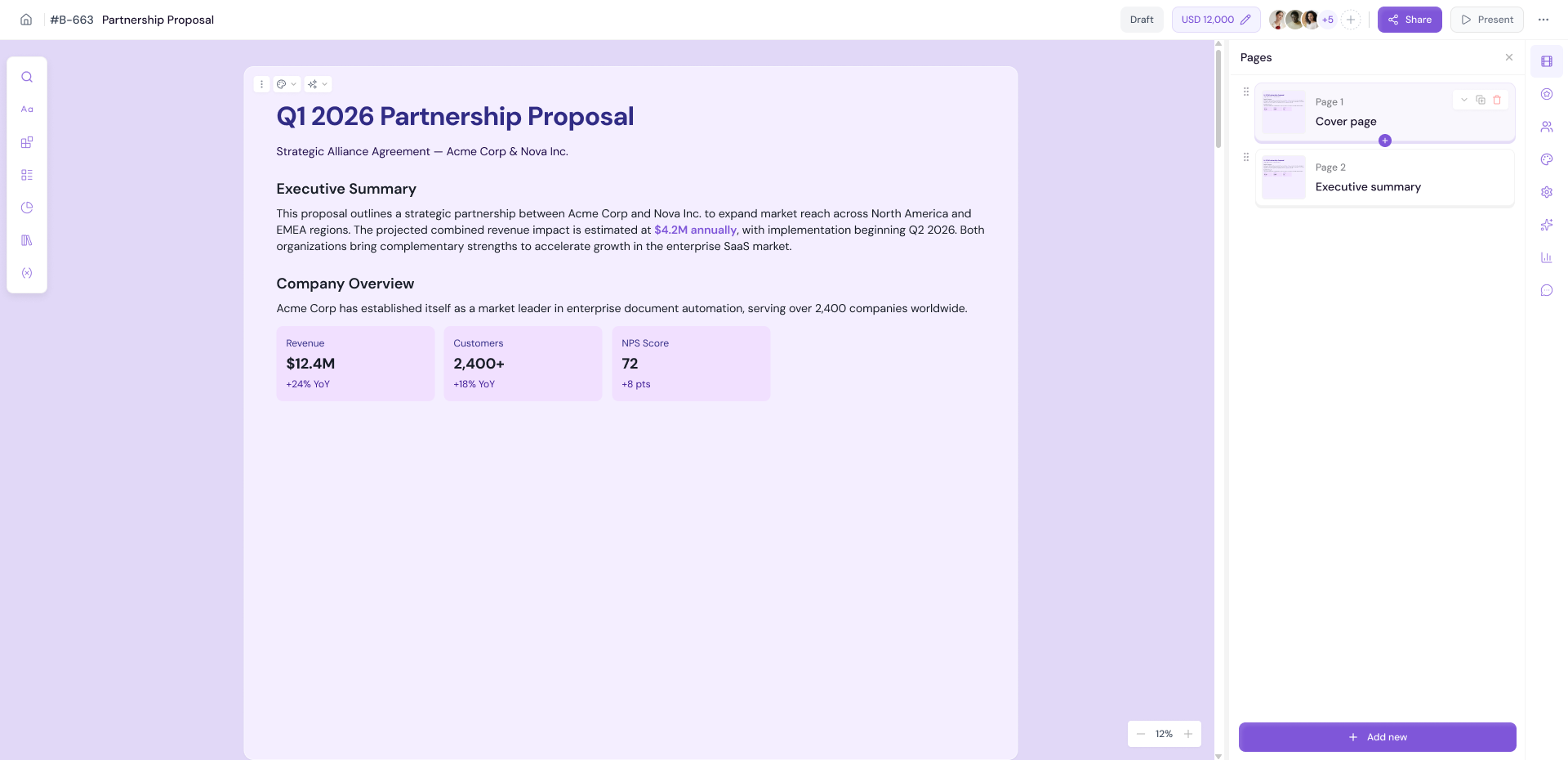
The Builder Interface
The builder is divided into four key areas:
1. Top Bar
The top bar runs across the top of the builder and contains your document details and primary actions:
Home icon — Click to return to your dashboard
Document ID and Title — Displays your document's unique ID and name
Status indicator — Shows the current status of your document (e.g. Draft, Sent)
Document Value — Shows and lets you edit the monetary value assigned to the document
User avatar — Shows who is currently editing
Share — Share your document with recipients
Present — Preview your document as a recipient would see it
More options (⋮) — Access Save as Template, Export/Download, and Delete Document
2. Left Panel
The left panel is your content building hub. It contains all the elements, blocks, layouts, and content you can add to your document. The left panel is organized into the following tabs:
Search — Search across all available blocks, layouts, and sections
Basic Blocks — Core content elements such as text, images, dividers, buttons, and more
Smart Layouts — Pre-designed layout combinations you can drop into your document
Content Master — Access content from your Knowledge Base directly inside the builder
Charts — Add data charts and visual graphs
Public Sections — Reusable sections shared across your organization
My Sections — Your own saved sections for quick reuse
Variables — Insert dynamic variables that auto-populate with recipient or workspace data
💡 Pro Tip Each tab is represented by an icon on the left side of the builder. Hover over any icon to see its label if you are not sure which tab it represents.
3. Canvas
The canvas is the main editing area at the center of the builder. This is where your document content lives and where all your editing happens.
Click any block on the canvas to select and edit it
Drag blocks up or down to rearrange your layout
Hover over a block to reveal the block toolbar with quick actions
Click outside any block to deselect
4. Right Panel
The right panel is your command center for document-level actions and settings. It contains the following tabs:
AI Agent — Use the AI assistant to edit, rewrite, or improve content
Recipients — Add and manage who receives this document
Themes — Customize your document's visual appearance
Layout Settings — Adjust page layout for documents or presentations
Evaluate — Score and review your document quality with AI
Analytics — View real-time engagement data for this document
Comments — Add internal comments or view team feedback
The Top Bar
The top bar runs across the top of the builder and gives you access to your document details and all primary actions. Here is everything available from left to right:
Home Icon
The home icon sits at the far left of the top bar. Click it to leave the builder and return to your dashboard at any time. Any unsaved changes will prompt you before exiting.
Document ID
Next to the home icon you will see your document's unique ID (e.g. B-250112). This ID is automatically assigned when the document is created and is useful for identifying documents in reports, support requests, and integrations.
Document Title
The document title is displayed next to the ID. This is the name you gave your document during creation. You can click on the title to edit it directly from the top bar without needing to go into any settings.
Document Status
A status badge shows the current state of your document. Possible statuses include:
Draft — Document is still being worked on and has not been sent
Sent — Document has been shared with recipients
Finished — Document has been completed by the recipient
Expired — Document has passed its expiry date
Document Value
The document value field (e.g. $0.00) shows the monetary value assigned to this document. Click the pencil icon next to it to edit the value. This value appears in your Reports and Documents table on the dashboard — useful for tracking pipeline and revenue.
Team Collaboration
The Invite members to your workspace modal will open
Enter the email address of the person you want to invite in the Invite by email field
To invite multiple people at once, enter multiple email addresses separated by a comma or space
Add an Optional message to personalize the invitation if needed
-
Under Invite as, select the role for the invited member:
Owner — Full access to the workspace including all settings, billing, and team management
Member — Can access all the public items in your workspace
Click Send to deliver the invitation
The invited member will receive an email with instructions to join your workspace.
💡 Pro Tip Use the comma or space separator to invite your entire team in one go. This is especially useful when onboarding a new department or project team to Proposal.biz.
Share Button
The Share button lets you send your document to recipients and configure sharing settings.
Click Share to open the sharing modal
Add recipients by entering their email addresses
Configure sharing options such as access permissions and notifications
Click Send to share the document
Present Button
The Present button opens a full-screen preview of your document exactly as a recipient would see it. Use this to review your document's layout, content, and formatting before sharing.
Click Present to enter preview mode
Navigate through your document pages
Close the preview to return to the builder
More Options Menu (⋮)
The three-dot menu at the far right of the top bar gives you access to additional document actions:
Save as Template
Export / Download
Delete Document
💡 Pro Tip Always use the Present button to preview your document before hitting Share. This gives you the exact recipient experience and helps catch any layout issues, typos, or formatting problems you might miss in the builder view.
Next Steps Learn how to use the left panel to add content to your documents in The Left Panel.