

Overview
The canvas is the main editing area at the center of the editor. This is where your document content lives — every block you add from the left panel, every piece of text you write, and every image you place all appear here. You can edit content inline, rearrange blocks, and use the block toolbar to manage individual elements.
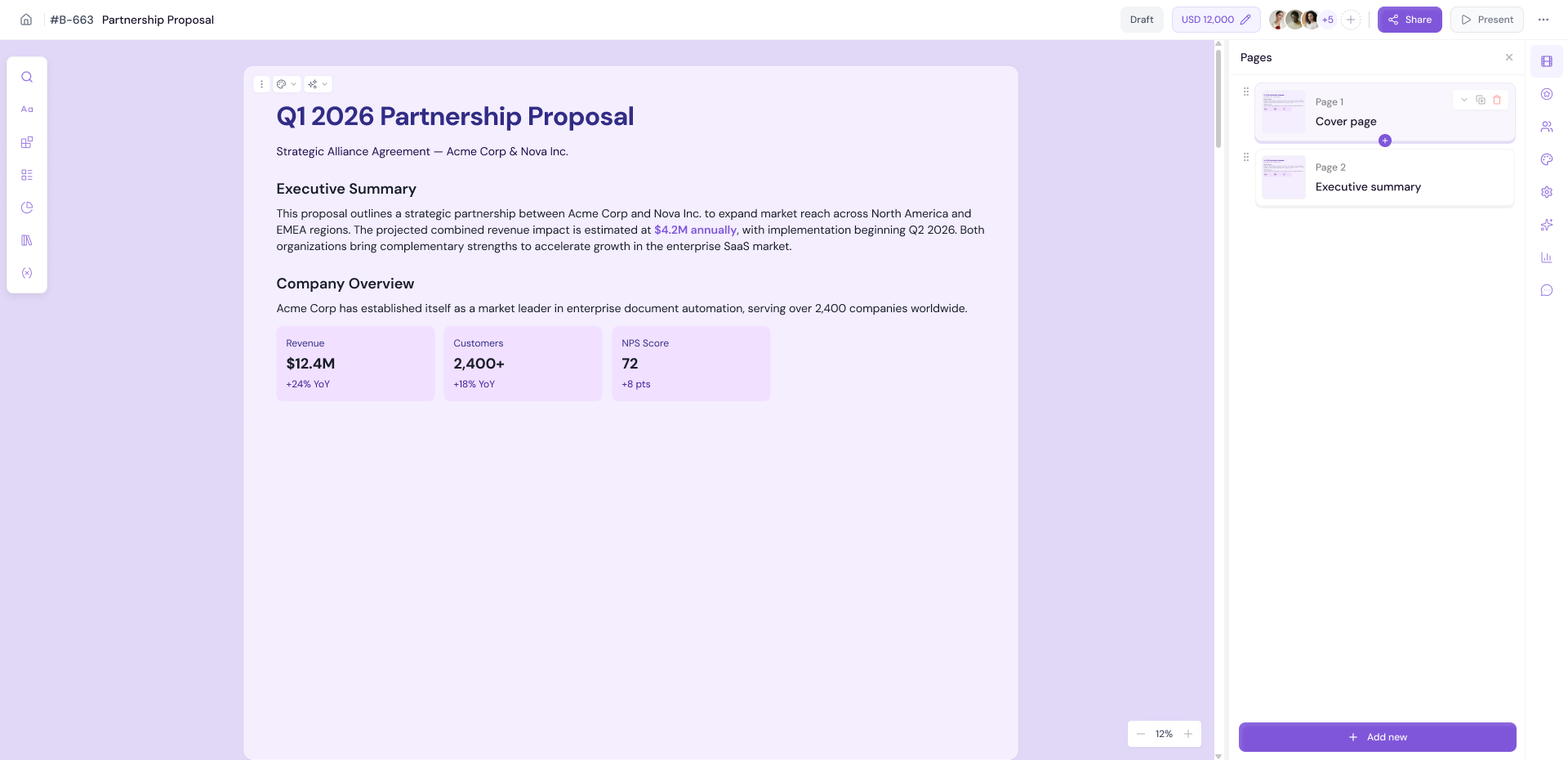
Selecting a Block
To work with any element on the canvas, you first need to select it.
Click on any block to select it
A highlighted border will appear around the selected block
The block toolbar will appear at the top of the selected block
Inline Text Editing
You can edit any text directly on the canvas without opening a separate editor or modal.
Click on any text block to enter edit mode
Type to add or modify text
Select text to reveal the inline formatting toolbar
-
Apply formatting such as:
Bold
Italic
Underline
Font size
Text alignment (left, center, right)
Text colour
Links
Lists
Click outside the block to deselect and save your changes
💡 Pro Tip Use keyboard shortcuts to speed up your editing — Ctrl+B for bold, Ctrl+I for italic, and Ctrl+Z to undo. These work the same way as any standard text editor.
The Page Toolbar
When you hover over or select any block on the canvas, a small toolbar appears at the top of the block. This toolbar gives you quick access to common actions for that specific block.
Available actions in the block toolbar include:
Move — Drag the block to rearrange its position on the canvas
Duplicate — Create a copy of the block
Copy — Copy the block to clipboard
Save Page — Save this block or page for reuse in other documents
Delete — Remove the block from the canvas
Note The exact options in the block toolbar may vary depending on the type of block you have selected. For example an image block will show image-specific actions while a text block will show text-specific actions.
Adding New Blocks Between Existing Blocks
When you hover between two blocks on the canvas, an insertion point will appear allowing you to add a new block at that specific position.
Hover between two existing blocks
Click the insertion point that appears
A new block will be added at that position
Alternatively drag any element from the left panel directly to the insertion point
💡 Pro Tip: Use Card Headers & Footers from the top bar's more options menu to add consistent headers and footers across all your pages — keeping your document looking professional and branded throughout.
Next Steps Learn how to add and edit images in your documents in Adding and Editing Images.