

Overview
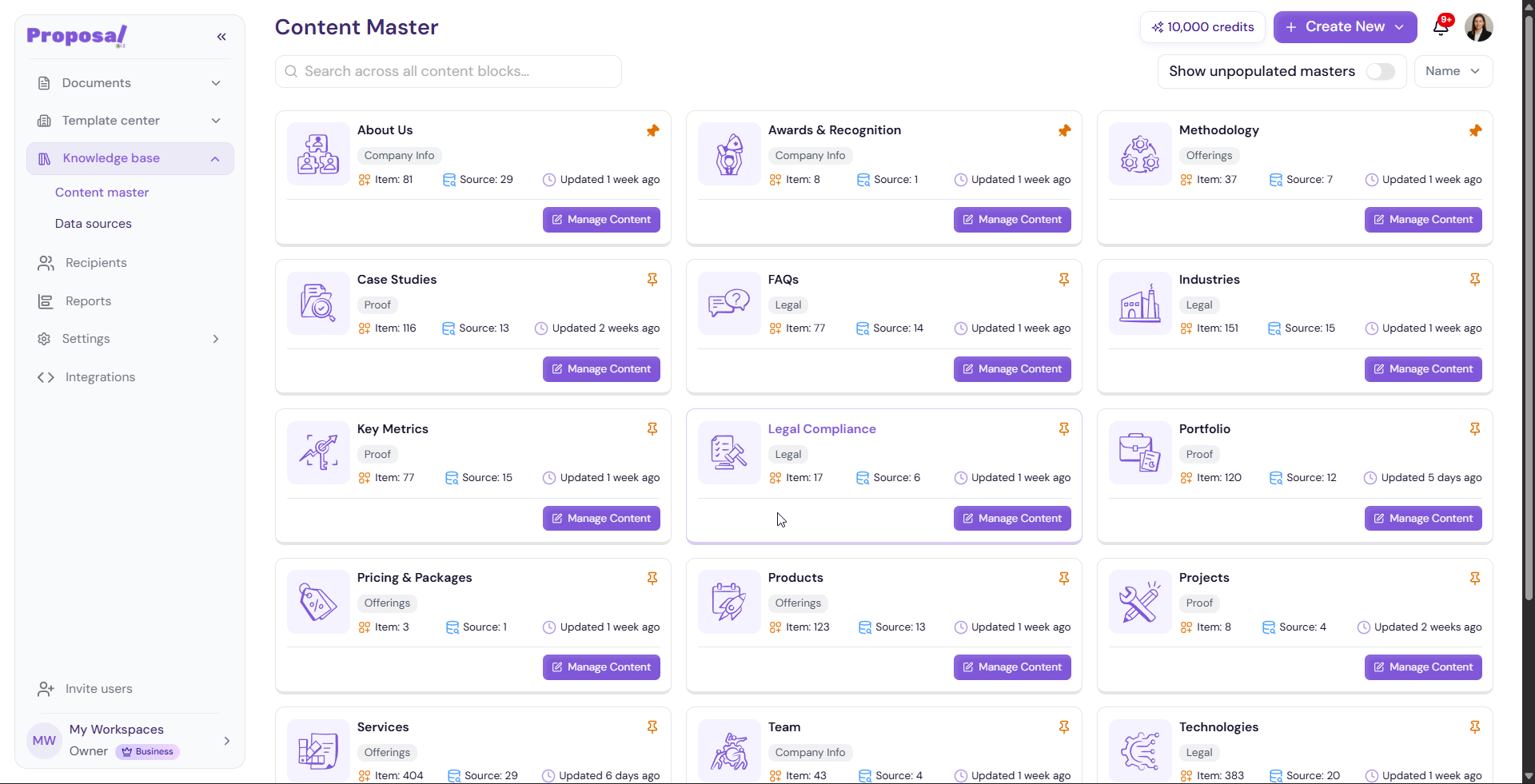
Content Master is where Proposal.biz organizes all the content extracted from your data sources into structured, ready-to-use content blocks. Think of it as your central content library — everything from your About Us, team details, services, and testimonials is stored here and available to insert directly into any document.
Accessing Content Master
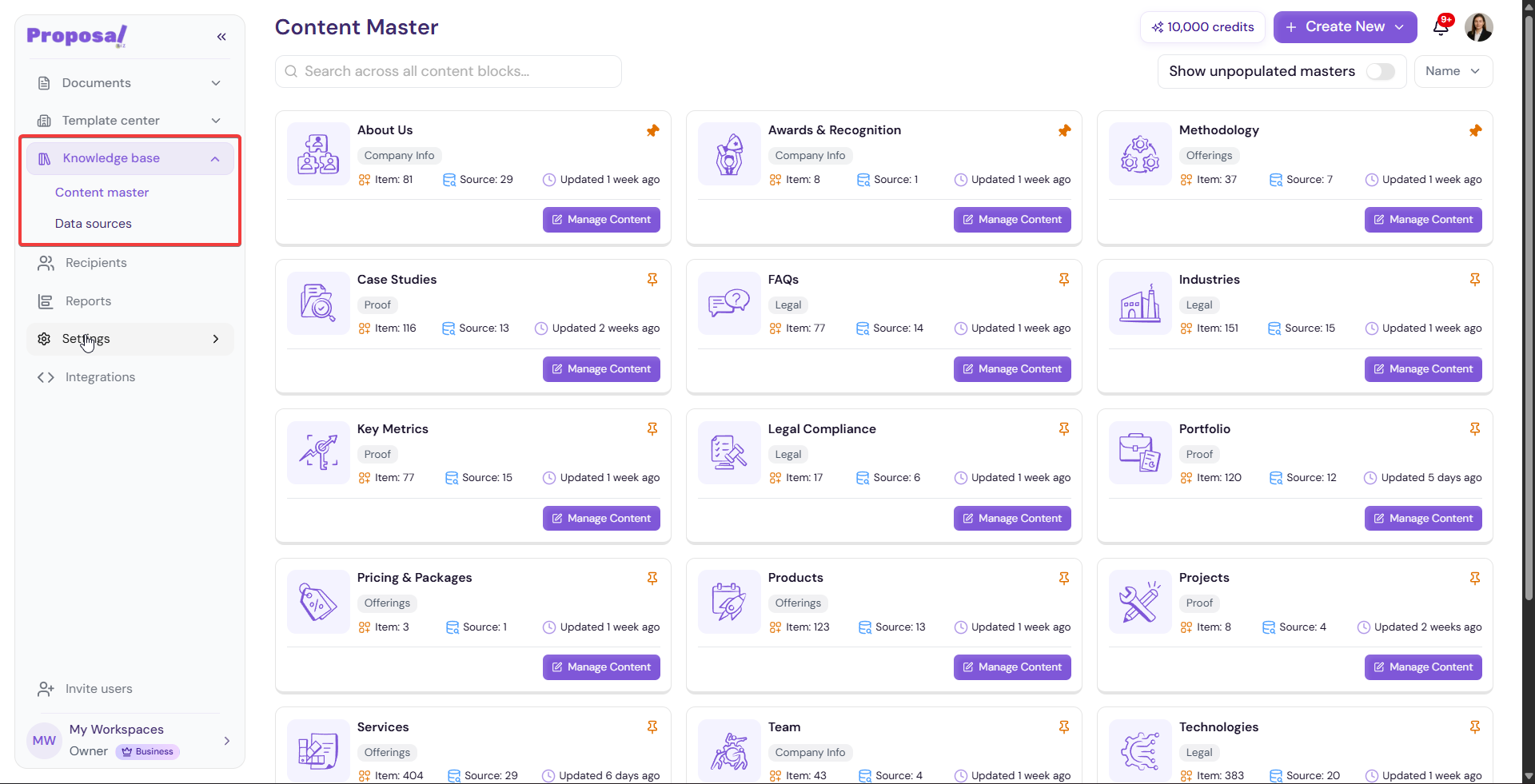
Go to Knowledge Base in the left sidebar
Click Content Master
[Insert screenshot: Content Master — full page view]
Understanding Content Blocks
Content Master organizes your extracted content into individual blocks by category. Each block represents a specific type of content pulled from your data sources — for example:
About Us
Team
Services
Testimonials
-
And more depending on what was extracted from your website or imported files
Editing a Content Block
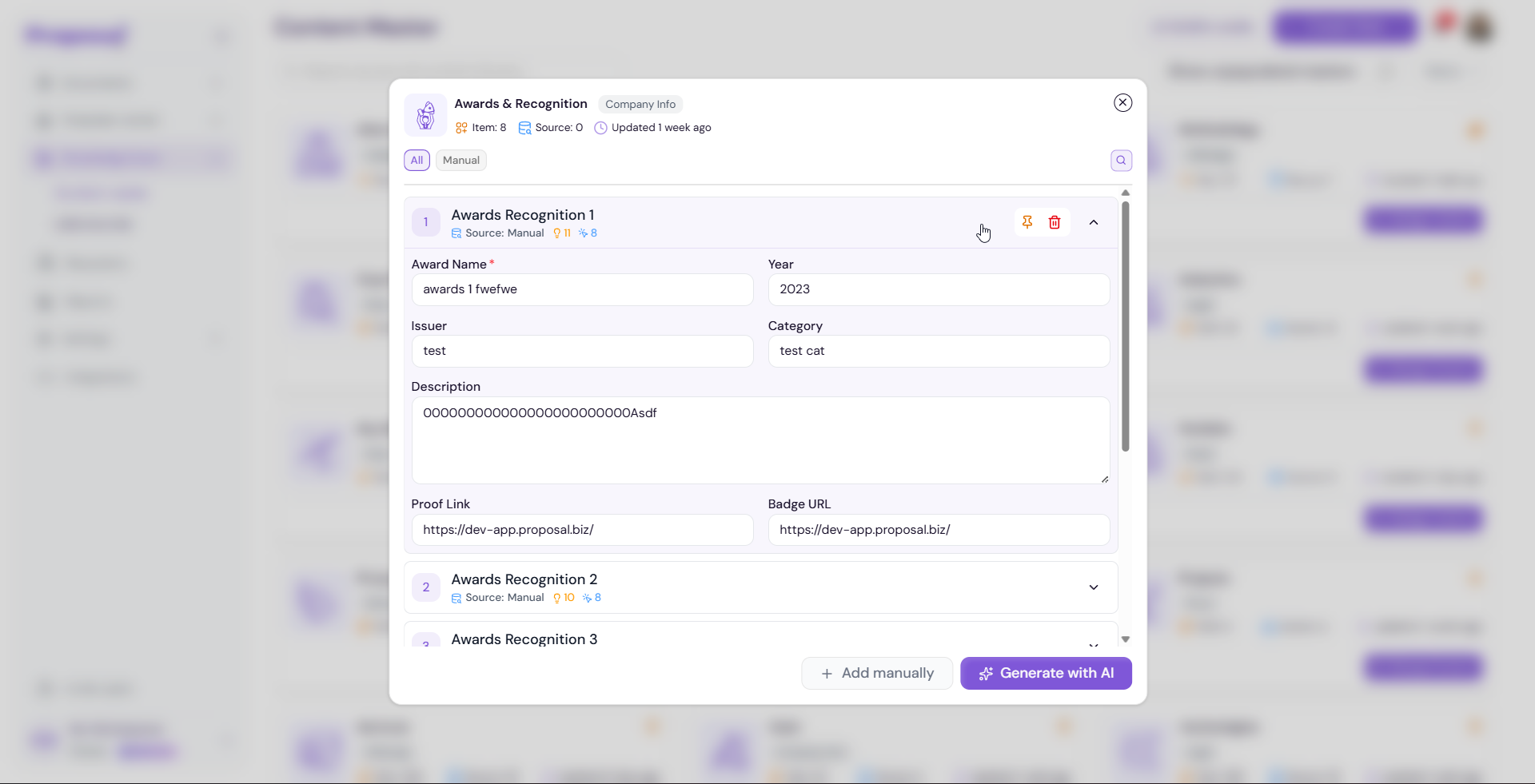
Hover over the content block you want to edit
Click Edit
The block will open in an input field state where you can update the content directly
-
Make your changes and click Update.
Previewing a Content Block
Hover over the content block you want to preview
Click Preview
The block will open in a preview state showing how the content will appear in a document
[Insert screenshot: Content Master — About Us block in preview state]
Deleting a Content Block
Hover over the content block you want to delete
Click Delete
The Delete Block confirmation modal will appear
Confirm the deletion to permanently remove the block
Note Deleting a content block removes it from Content Master permanently. If you need it again you will have to re-extract it from your data sources.
Using Content Master Inside the Editor
You can access and insert your Content Master blocks directly while working on a document:
Open any document in the editor
Go to the Left Panel
Navigate to the Content Master tab
-
Browse your content blocks and click to insert into your document
💡 Pro Tip Keep your Content Master up to date by refreshing your data sources whenever your website content changes. This ensures that every document you create always reflects your latest brand messaging, team details, and service offerings.
Next Steps Now that your content and data are in order, learn how to configure your workspace in Settings.