

Overview
The Proposal.biz MCP server lets any MCP-compatible AI agent such as Claude create and manage proposals on your behalf. Once connected, you can create documents, verify your account, and manage proposals directly through your AI agent without switching to Proposal.biz manually.
Server URL:
https://app.proposal.biz/api/mcpUse this exact URL wherever your client asks for the MCP server endpoint.
Prerequisites
Before you begin, make sure you have:
A Proposal.biz account with an active organization
An MCP-compatible client — any agent or app that supports the Model Context Protocol (e.g. Claude, desktop AI clients, IDE assistants, or custom agents built on an MCP SDK)
Internet access from the client machine to
app.proposal.biz
Choose an Authentication Method
The MCP server accepts two authentication methods. OAuth is recommended for end-user clients; API keys are better for headless agents and automated environments.
OAuth |
API Key |
|
|---|---|---|
Setup |
Browser login on first connect |
Generate once, paste into config |
Best for |
Desktop / IDE / personal agents |
Servers, scripts, automated agents |
Revocation |
Per-session in account settings |
Per-key in account settings |
Scopes |
Granted at consent screen |
Bound to the key at creation |
Option A — Connect via OAuth (Recommended)
Open your AI agent's MCP / connector settings
-
Add a new MCP server with the following details:
Name:
proposal.biz(or anything you prefer)URL:
https://app.proposal.biz/api/mcpAuth: OAuth
Trigger the connection — a browser window will open
Log in to Proposal.biz if you are not already signed in
Approve all requested scopes on the consent screen —
write:proposalsis required for the tools to workThe browser will close or show a success message and your agent is now connected
Option B — Connect via API Key
Use this method when your agent runs unattended or does not support OAuth.
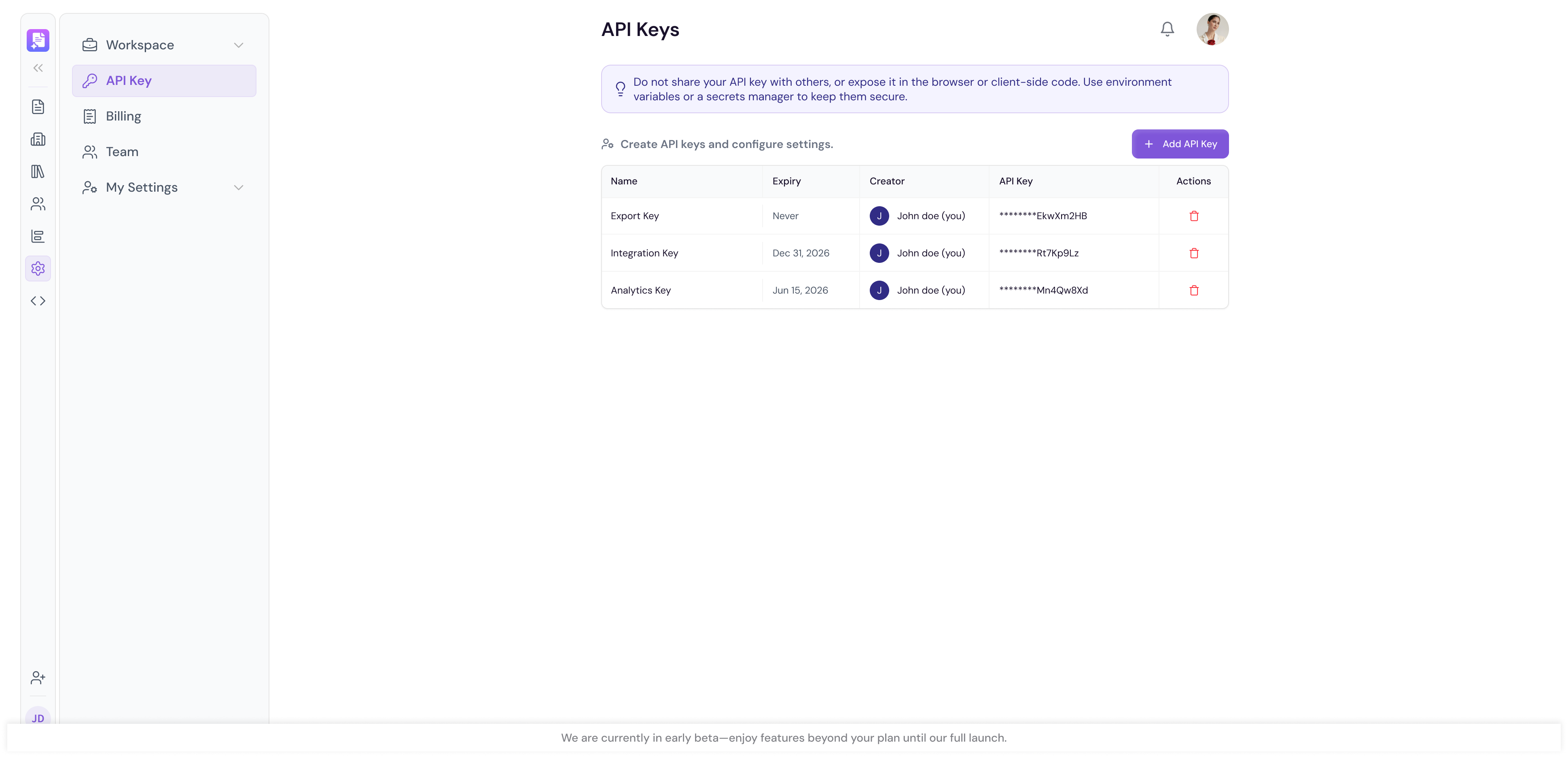
Sign in at app.proposal.biz
Go to Settings → API Keys
Click Create Key
Give it a name (e.g.
My Agent) and grant thewrite:proposalspermissionCopy the key — it begins with
pbz_and is shown only onceIn your AI client's MCP server config, add the server URL and configure the auth header:
Authorization: Bearer pbz_xxxxxxxxxxxxxxxxxxxxxxxxMost clients have a dedicated Bearer Token or API Key field — paste the full pbz_... value there 7. Save the config and restart the client if required
Key Safety
Treat the key like a password — anyone with it can act as your account within its scopes
Rotate keys from Settings → API Keys if you suspect leakage
Use separate keys for each environment instead of reusing one key everywhere
💡 Pro Tip If you are connecting for personal use, OAuth is the quickest option. If you are setting up the connection for a team or automated workflow, use an API Key for more controlled and secure access.
Loading the Skill Definition (Optional)
A companion skill file is available that teaches the AI agent how to reason about and call Proposal.biz tools more effectively. If your client supports loadable skills or instruction packs, point it at:
https://raw.githubusercontent.com/Proposal-Builder/proposal-biz-claude-skill/refs/heads/master/ProposalBizSkill-claude.mdIf your client does not support remote skill loading, download the file and paste its contents into the agent's system prompt or custom instructions.
Note Connecting without the skill works, but proposals will be less polished. The skill teaches the agent how to gather requirements, choose a render type, and produce well-structured markdown.
Available Tools
Once connected, the agent will have access to three tools:
ping Smoke test for connectivity and auth. Echoes back the supplied message.
message(string, required) — text to echoconversationId(string, optional) — passthrough context id
create_proposal Creates a new proposal in your active organization from markdown.
title(string, required) — proposal titlemarkdown(string, required) — full proposal body in markdownrenderType(document|presentation|webpage, optional, defaultdocument) — output format
Requires the write:proposals scope. Returns the new proposal's ID and metadata.
get_user_profile Returns the authenticated user's profile and active organization. No inputs required. Useful for verifying which account the agent is currently bound to.
Verifying Your Connection
Once connected, verify everything is working by asking the agent to:
Step 1: Call the ping tool:
"Call the ping tool with the message hello."
A successful response will look like: ping: hello (User: <your-user-id>)
Step 2: Call get_user_profile:
"Call get_user_profile."
Confirm the returned email and organization name match the account you intended to connect.
What You Can Do After Connecting
Once the MCP connection is active you can:
Create documents — Describe the document you need in plain language and the agent will generate it in Proposal.biz using the
create_proposaltoolChoose output format — Specify whether you want a Document, Presentation, or Webpage
Verify your account — Confirm which organization the agent is connected to at any time
Troubleshooting
Symptom |
Cause |
Fix |
|---|---|---|
|
No bearer token sent or token rejected |
Re-check the server URL and auth header. For OAuth reconnect from the client. For API keys confirm the key starts with |
|
OAuth access token expired and refresh failed |
Disconnect and reconnect the server in your client |
|
OAuth consent did not include |
OAuth: reconnect and approve |
|
The signed-in user has no active organization |
Open the dashboard, create or switch to an organization, then retry |
Tools do not appear in the agent |
Client did not complete the MCP handshake |
Confirm the URL is exactly |
OAuth browser window never opens |
Client does not support OAuth discovery |
Switch to the API Key method (Option B) |
If errors persist, capture the request ID from your client's logs and contact support at services@proposal.biz.
💡 Pro Tip Always run a ping test after connecting or reconnecting to make sure auth and scopes are working before attempting to create any proposals.
Next Steps Learn how to connect your Zoho CRM in Connecting Zoho.