
Overview
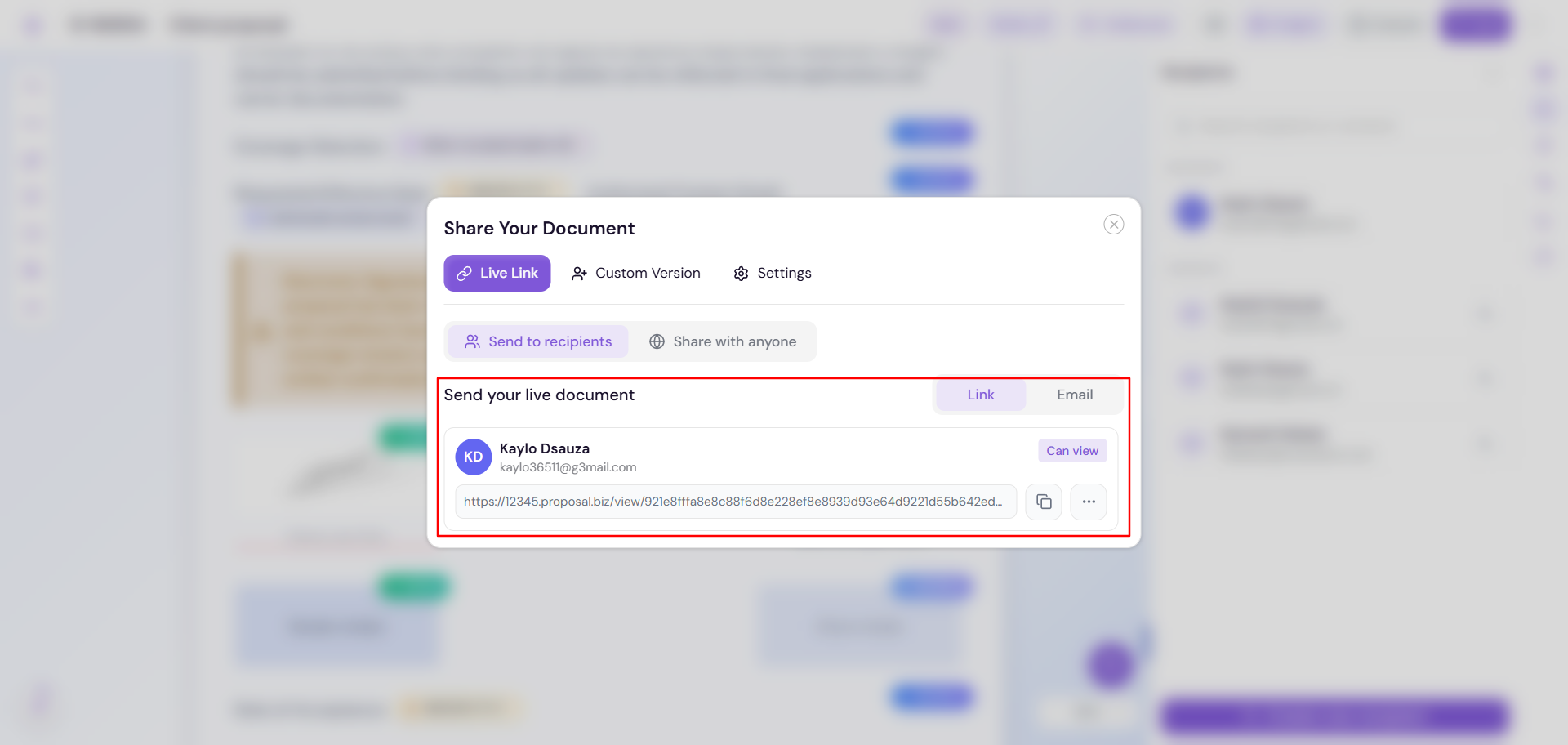
Until now, sending a document meant sending it to a named recipient. That's still fully supported, and nothing about it has changed.
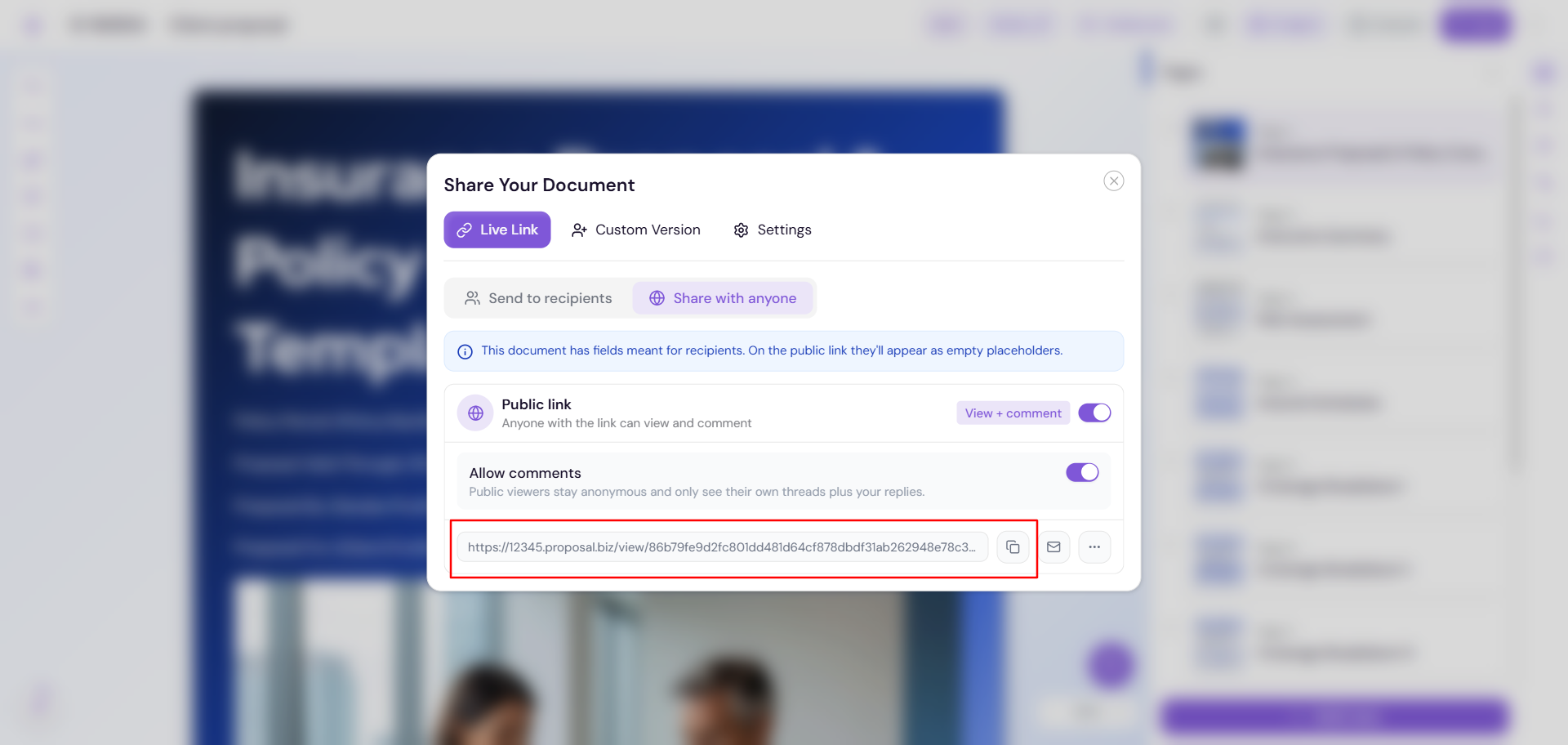
What's new is a second option. Alongside the Recipient Link, you can now generate a Public Link, a single link that anyone can open, with no recipient required. The Send flow automatically shows you the right option based on your document, so you never have to guess which mode you're in.
What's New
1. Public Link, alongside the Recipient Link
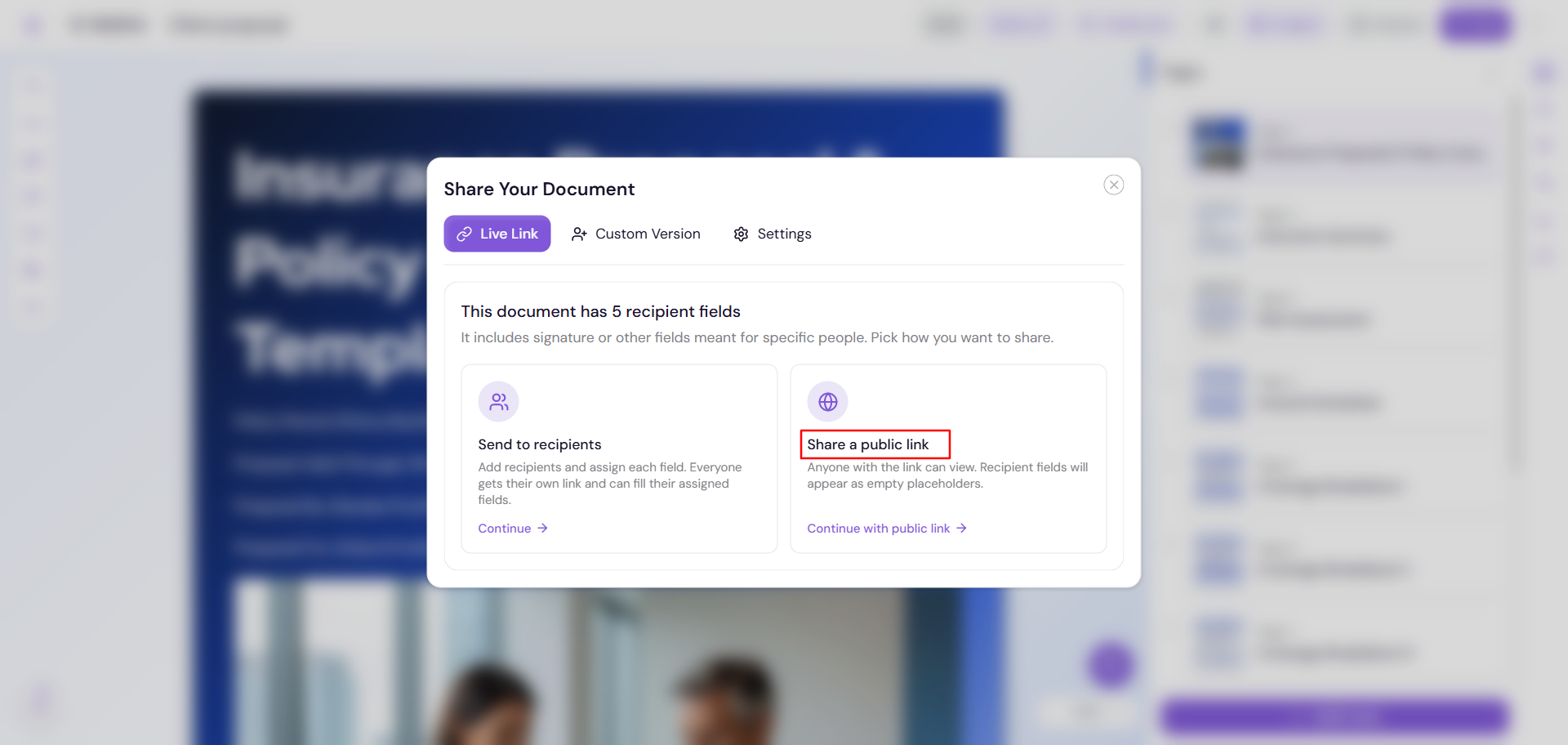
If your document has no Recipient block, the Send popup now gives you a choice: send it the way you always have, to a named recipient, or share it as a Public Link that anyone can open.
How it works:
Click Send
Choose Recipient Link or Share a Public Link
If you choose Public Link, get one shareable link
2. Ad-Hoc Email Sharing for Public Links
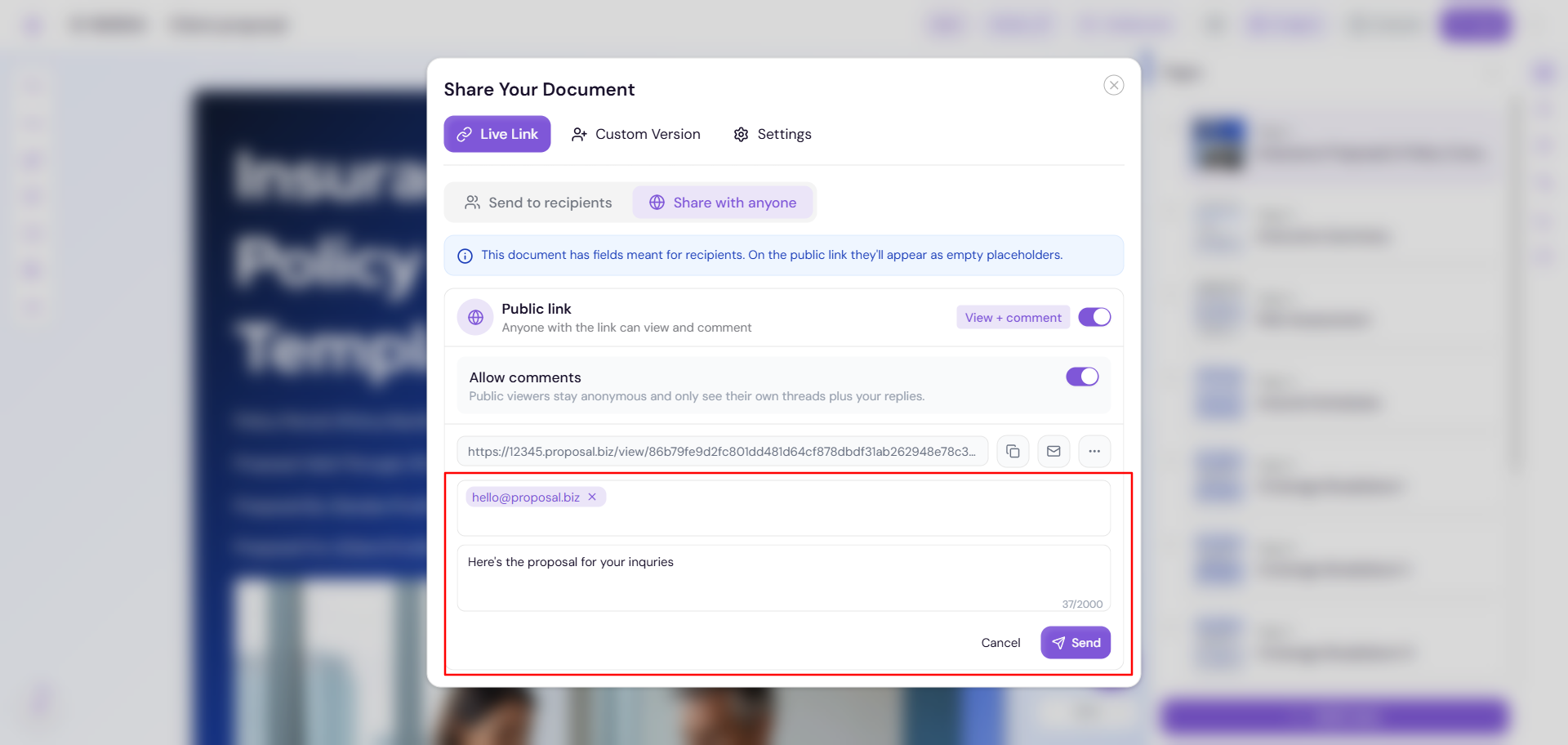
Since there's no recipient tied to a Public Link, you can now send it by email to anyone you choose.
How it works:
Enter any email address
Add an optional message
Click Send
3. Recipient Documents Stay Unchanged
If your document already has a Recipient block, the Send popup skips straight to recipient selection, just like before. The Public Link option only appears when there's no recipient tied to the document.