

When content exceeds the page boundary, you can now fix it in a single click — either on the page where it occurs, or for every page at once via Fix all overflows.
How it works
1. Content exceeds page boundary
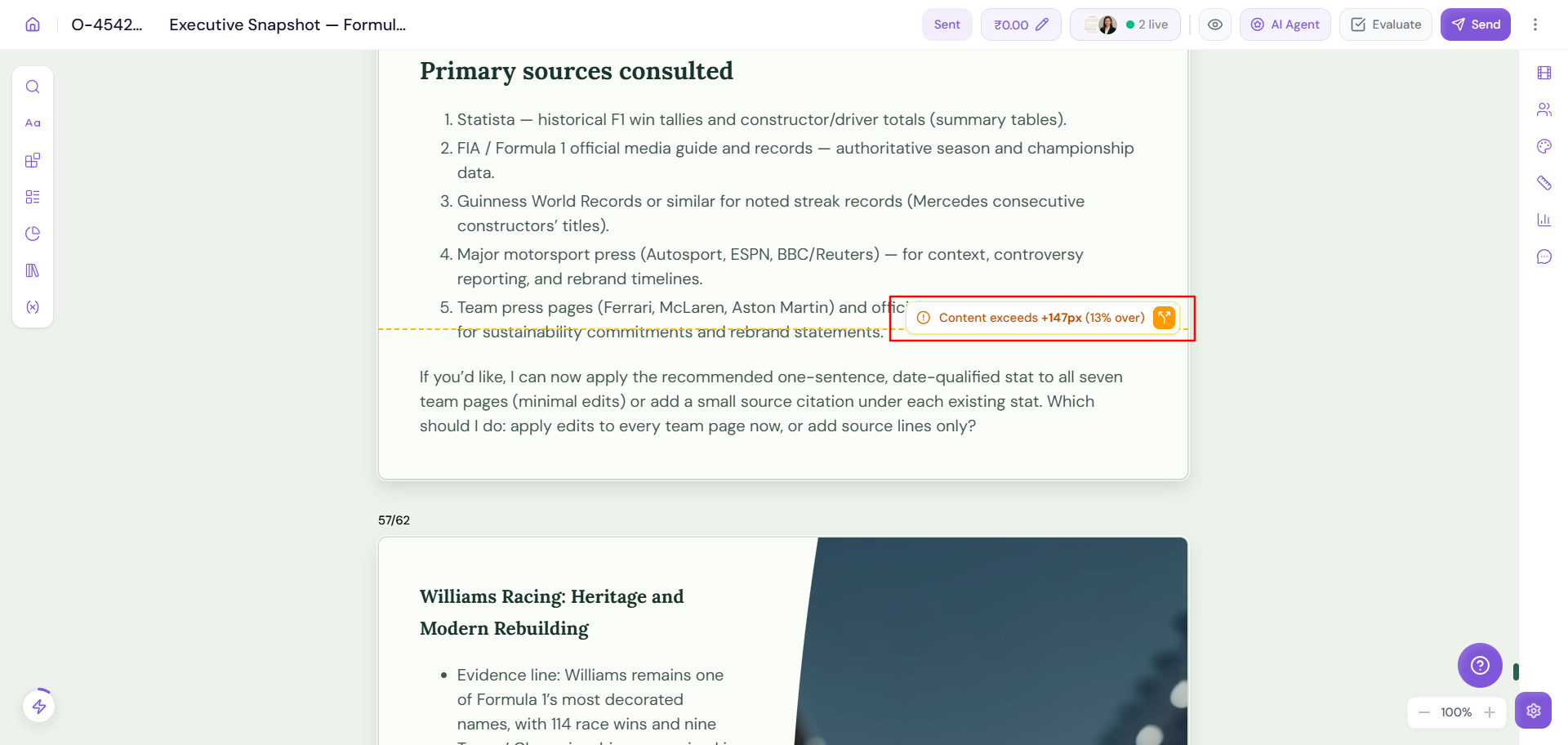
When a page's content exceeds the page boundary, it's flagged inline with a message showing exactly how much it exceeds by — for example, “Content exceeds +147px (13% over)” — along with a Fix action next to it. Clicking Fix pushes the excess content down to the next page.
2. Review Before Sending
When you click Send, if a page still overflows the page boundary, a Review Before Sending modal appears — e.g. “1 page still overflow the page boundary. Sent output may look clipped. Largest overflow: +147px” — listing each affected page with its page number and overflow amount. From here you can:
• Fix all overflows — resolve every flagged page in a single action.
• Fix highest priority — resolve just the page with the largest overflow first.
• Go to page [X] — jump directly to a specific page to review before fixing.
Once every page is resolved, click Continue to send — the sent output won't look clipped.
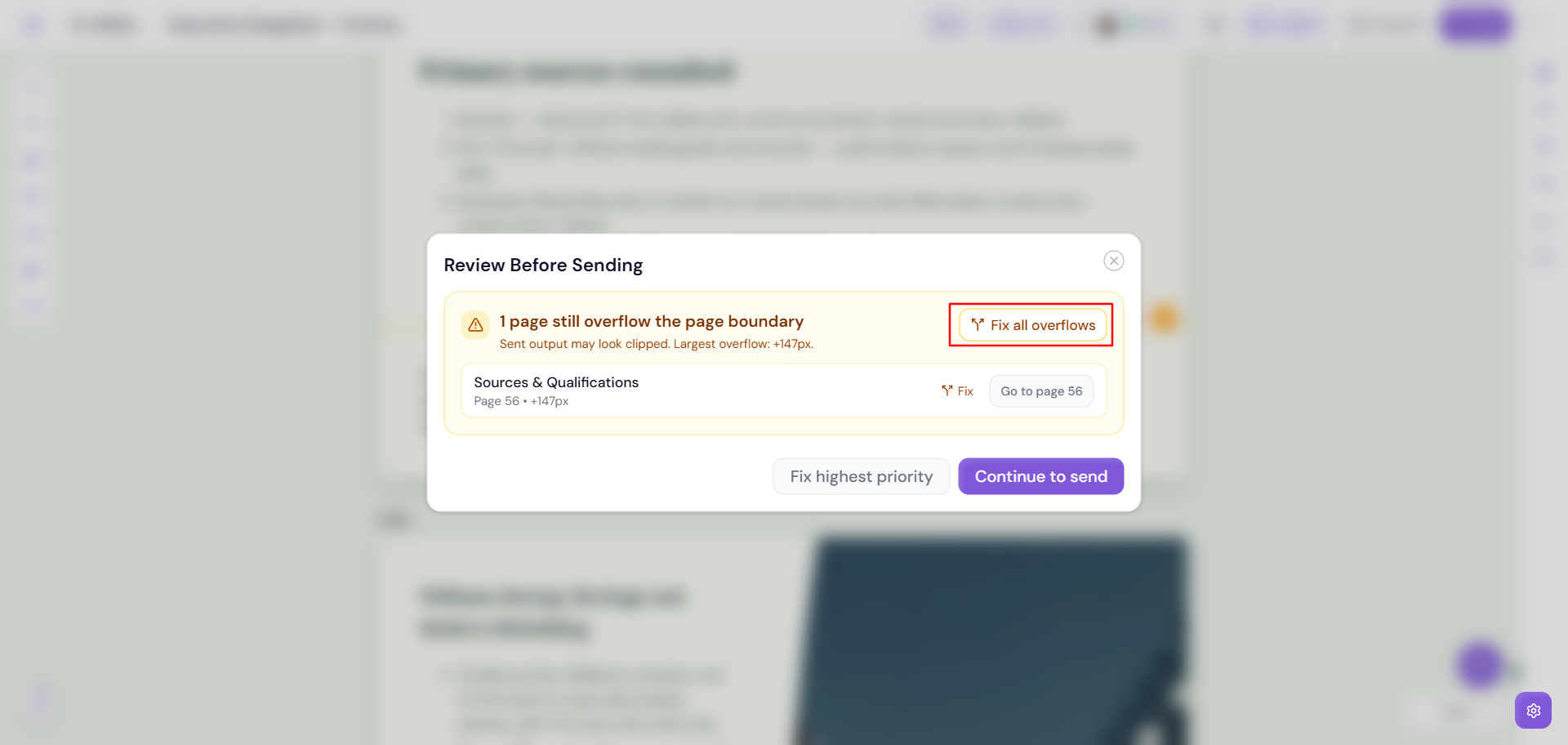
Review Before Sending — Fix all overflows, Fix highest priority, and Go to page options.
Why it matters
Previously, sent output could look clipped when content exceeded the page boundary, with no easy way to catch it beforehand. This feature flags exceeded content up front and lets users fix it in one click — either page by page, or all at once with Fix all overflows.