

Overview
My Pages is where all the pages you have manually saved from the editor are stored. Once saved, you can reuse them across any document keeping your content consistent and saving time on repeat work.
How Pages Get Saved
Pages do not appear here automatically. You need to manually save them from inside the editor.
To save a page from the editor:
Open any document in the editor
Hover over the page or card you want to save
A toolbar will appear at the top of the page with a set of action icons
Click the Save Page icon from the toolbar
-
Give your page a name and confirm
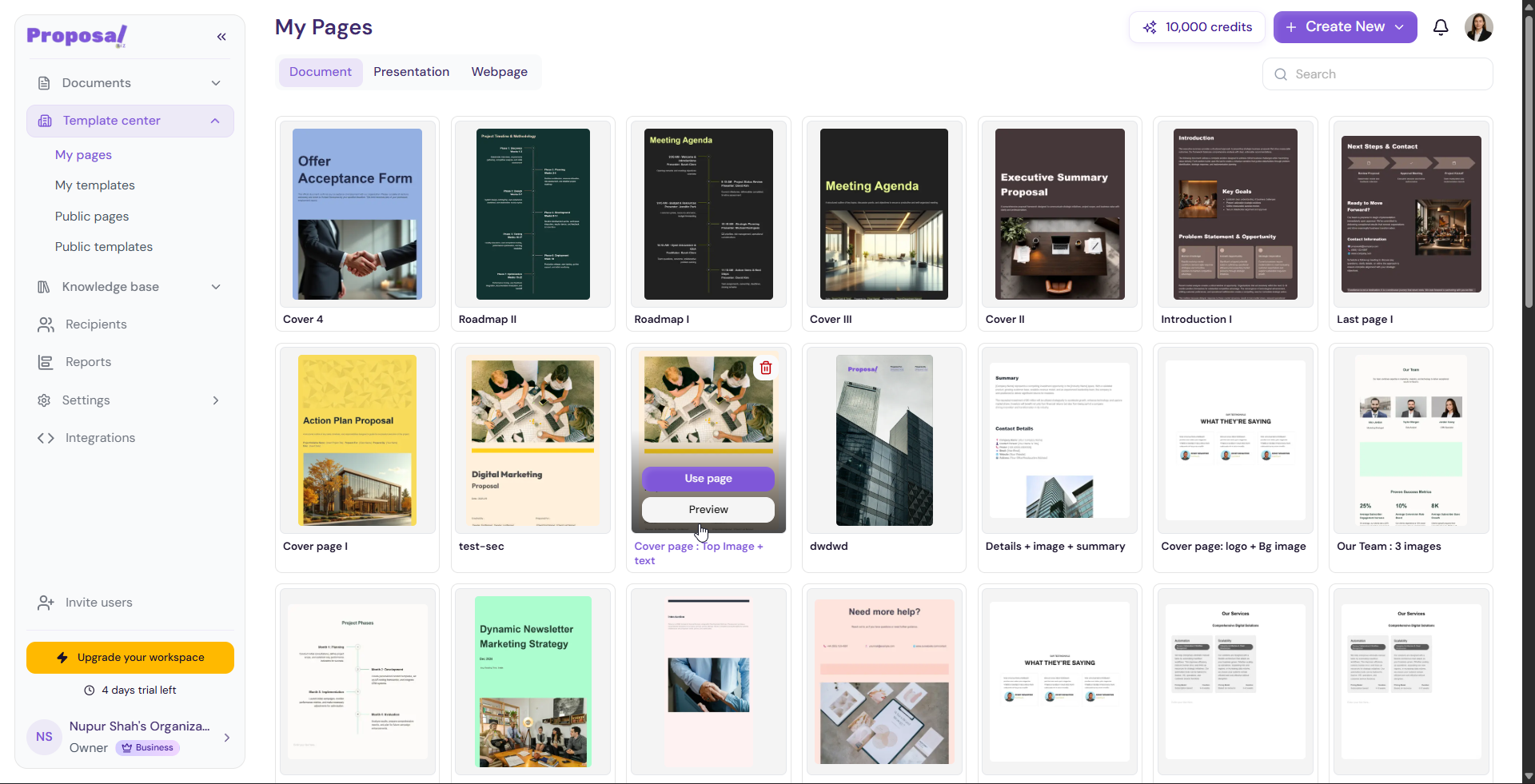
Once saved, the page will appear in My Pages and will be available to insert into any future document.
Managing Your Pages
From My Pages you can:
Use — Insert the page directly into your current document
Preview — Review the full template before opening it in the editor
Delete — Remove a page you no longer need
💡 Pro Tip Save your most-used content blocks such as pricing tables, about us pages , or testimonials as Pages. This way your team can insert them into any document in seconds without rewriting from scratch every time.
Next Steps Learn how to save and manage full document templates in My Templates.