Overview
A public link lets anyone with the link open your document, with no recipient details needed. It’s the quickest way to share a document in a message, a post, or anywhere you don’t know exactly who will read it.
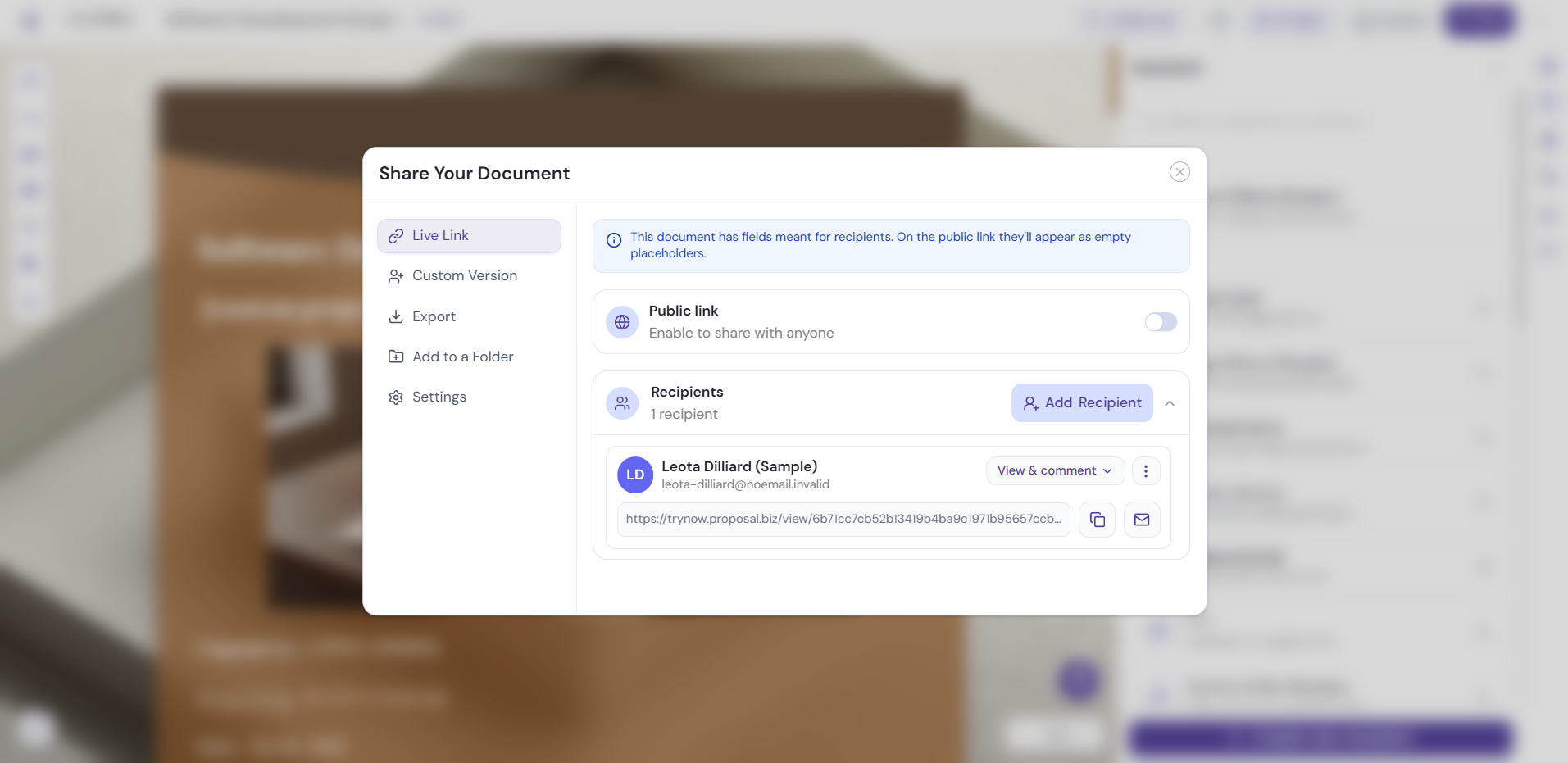
You turn it on from the Live Link tab in the Share Your Document window. If you want to send your document to specific people instead, use Recipients on the same tab.
Public Link vs Recipients
The Live Link tab gives you two ways to share:
-
Public link: enable it to share with anyone who has the link.
-
Recipients: send directly to specific people.
Use a public link when you want to share widely and quickly. Use Recipients when the document is meant for particular people.
Turn On a Public Link
-
Open your document in the builder.
-
Click Send in the top bar.
-
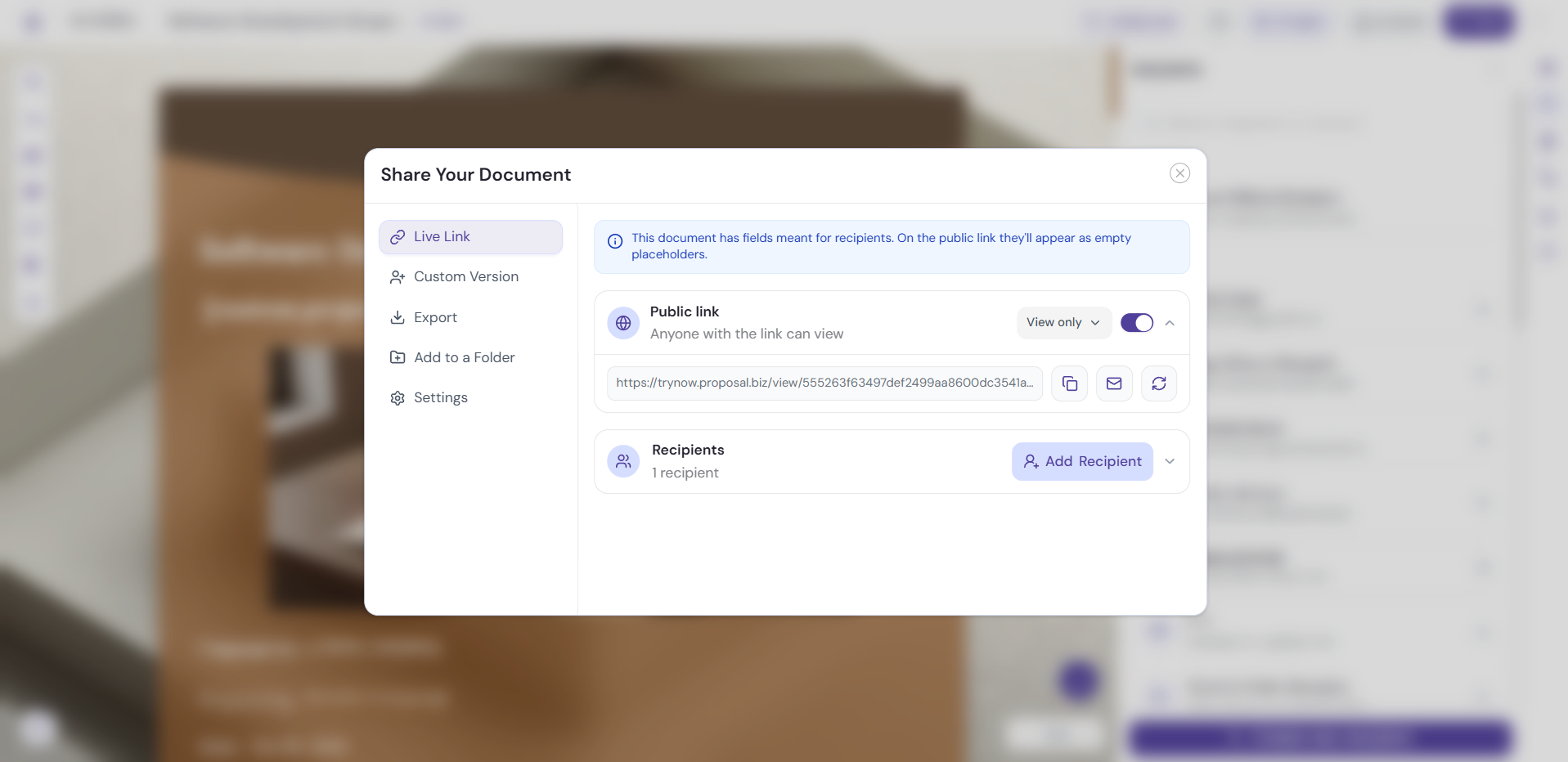
On the Live Link tab, turn on the Public link toggle.
-
Copy the link and share it wherever you need.
If Your Document Has Recipient Fields
Some documents include fields meant for a specific recipient. When one of these documents is shared by public link, the Live Link tab shows a notice: those fields appear as empty placeholders on the public link.
If your document relies on recipient details, use Recipients instead so each person sees a complete document.
Control Who Can Open Your Public Link
Open the Settings tab in the same window to add protection:
-
Expiration Settings: turn on the toggle to set when the link stops working.
-
Password protection: turn on the toggle under Access setting so visitors must enter a password.
Pro Tips
-
Use Present to preview your document before you turn on the public link. It shows exactly what visitors will see.
-
If your document contains confidential pricing or terms, turn on password protection before you share the link.
-
Set an expiration on links you share widely, so the document isn’t available longer than you intend.
Next Steps
Learn how to protect your link in Password Protection for Shared Documents.