Overview
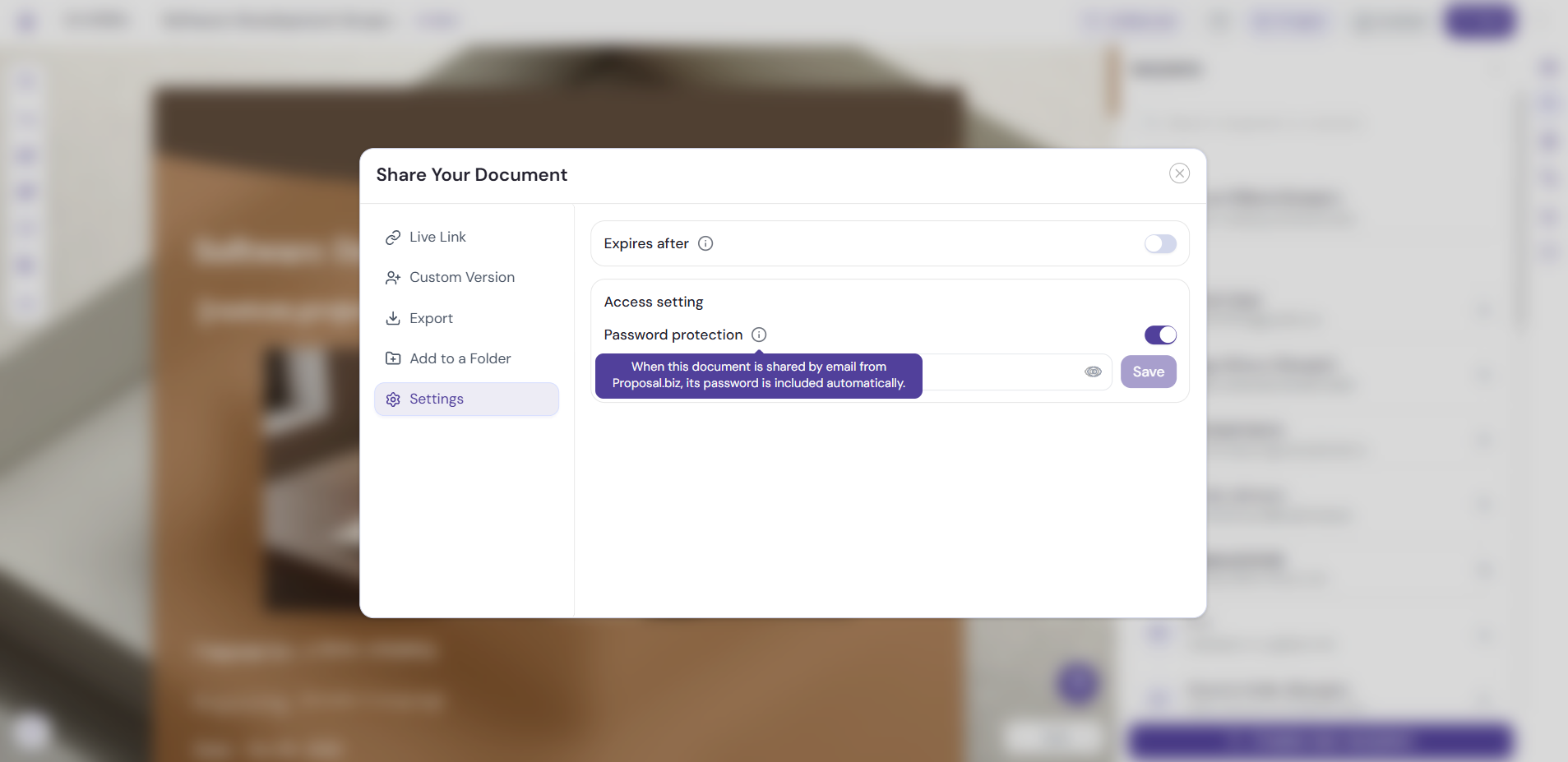
Password protection adds a password to your document, so only people who have it can open your shared document. Turn it on for documents with confidential pricing, business terms, or anything you don’t want opened by just anyone with the link.
You turn it on from the Settings tab in the Share Your Document window.
Turn On Password Protection
-
Open your document in the builder.
-
Click Send in the top bar.
-
Click the Settings tab.
-
Under Access setting, turn on the Password protection toggle.
-
Enter the password you want visitors to use.
What Visitors See
When password protection is on, visitors are asked for the password before they can open your document.
Add an Expiration Date
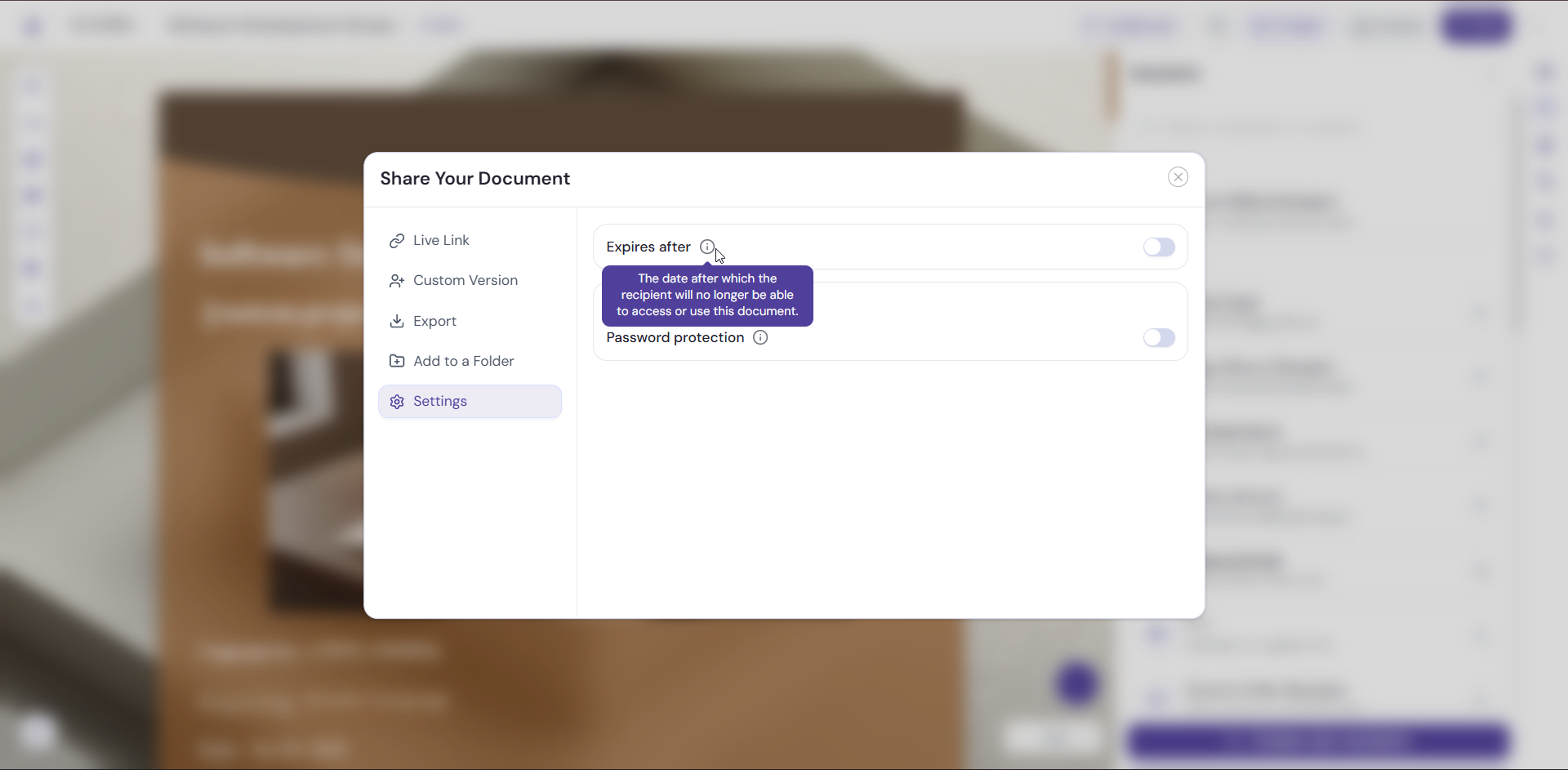
For extra control, use Expiration Settings on the same tab. Turn on the toggle to set when your document stops being available. You can use it together with password protection.
Pro Tips
-
Choose a password that’s easy to share but hard to guess.
-
Combine password protection with Expiration Settings for documents with sensitive pricing or terms.
-
Use Present to review your document before you share it, so you know exactly what visitors will see once they’re in.
Next Steps
Learn about every sharing option in Sharing and Sending Your Document, or see how to share with anyone in Share Documents with Public Links.