Overview
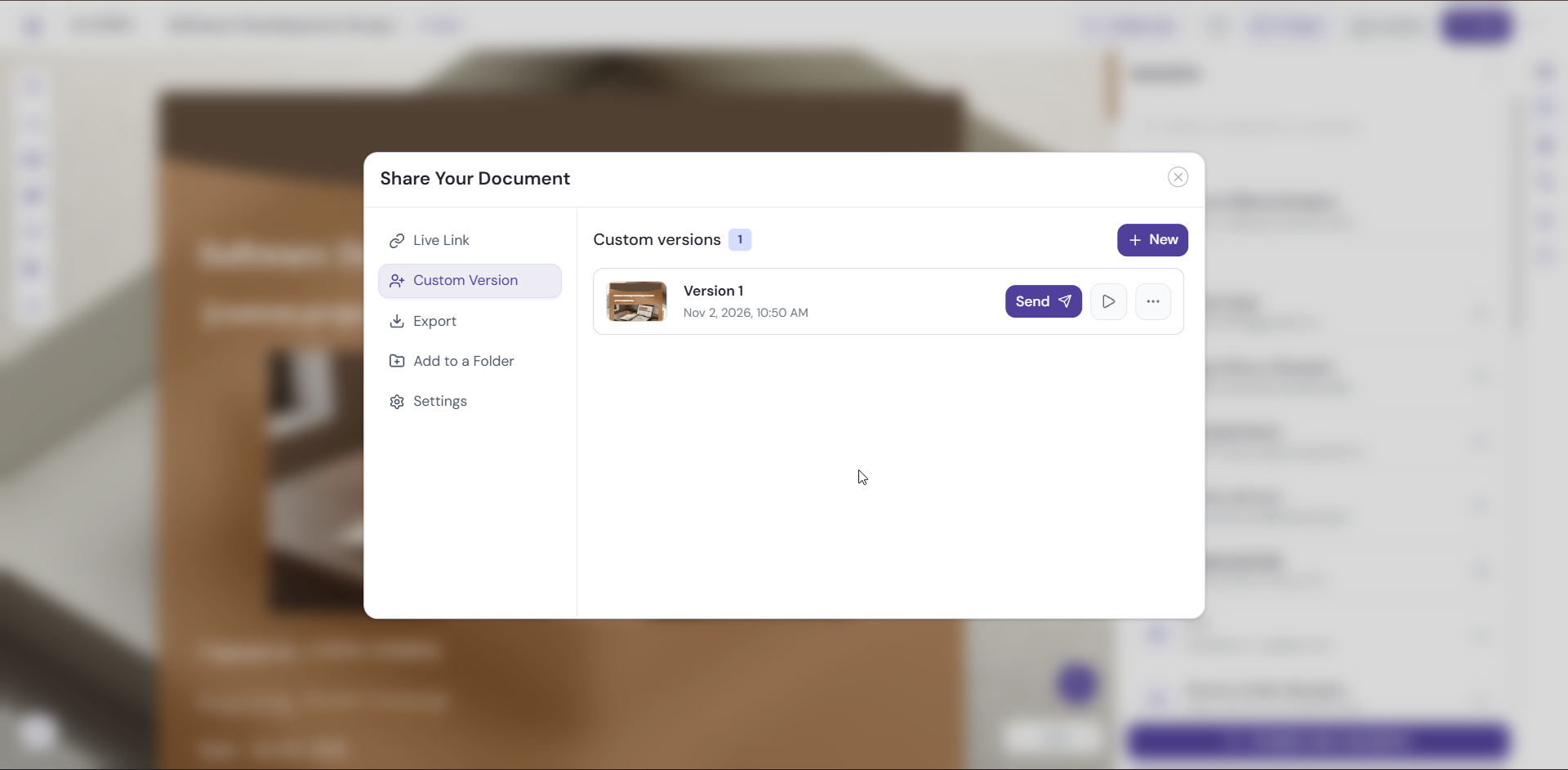
A custom version is a saved copy of your document that you can tailor for a specific prospect or purpose, such as a client draft or an internal review. Each version keeps its own send link, so you can share different versions without changing your original document.
You create versions from the Custom Version tab in the Share Your Document window.
Create a Custom Version
-
Open your document in the builder.
-
Click Send in the top bar.
-
Click the Custom Version tab.
-
Click Create version.
-
In the Version name field, enter a name that describes the version, for example “Client draft” or “Internal review”.
-
Click Create version to save it. Click Back to return without creating a version.
What to Know About Custom Versions
-
Each version has its own send link. You can share a different version with each prospect.
-
You can restore a version into the builder later. Come back to any version you’ve created and continue working on it.
See How Each Version Performs
Custom versions appear in the Custom Versions section of your document’s report, so you can compare how each one performs. Learn more in Document-Level Analytics and Version-Level Reports.
Pro Tips
-
Give every version a clear name, such as the client’s name or the purpose. It makes versions easy to tell apart later.
-
Create a version before you make major changes, such as new pricing or a revised scope. Then you can compare how each performs in Reports.
-
Create one version per prospect so each document feels written for them.
Next Steps
Learn about every sharing option in Sharing and Sending Your Document.