Overview
Folders keep your documents organized, so you can find the right one quickly as your library grows. You can move any document into a folder straight from the builder.
You do this from the Add to a Folder tab in the Share Your Document window.
Move a Document to a Folder
-
Open your document in the builder.
-
Click Send in the top bar.
-
Click the Add to a Folder tab.
-
Open the Destination folder dropdown and choose where to move your document.
-
Click Move.
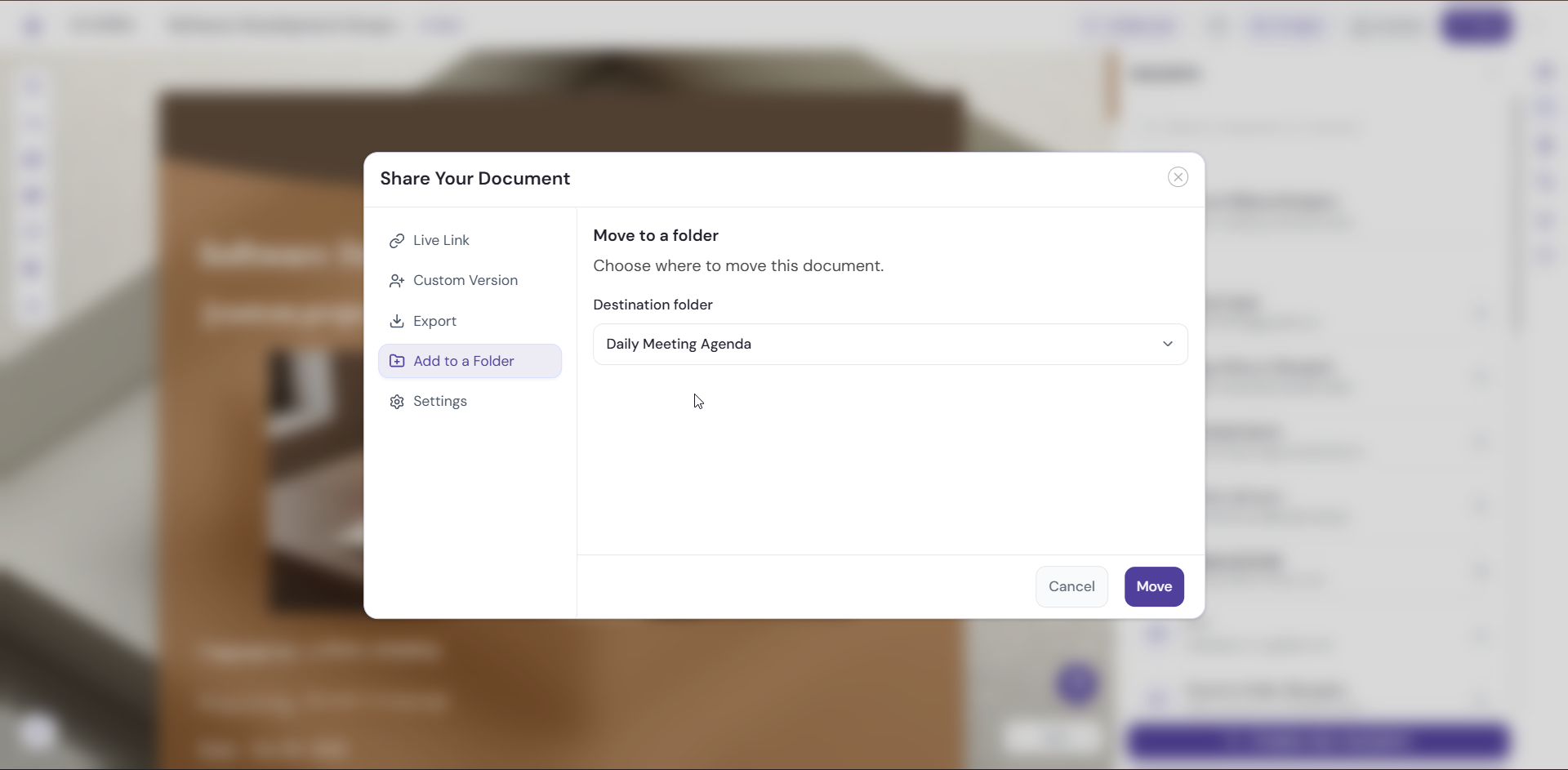
Understanding Destination Folder
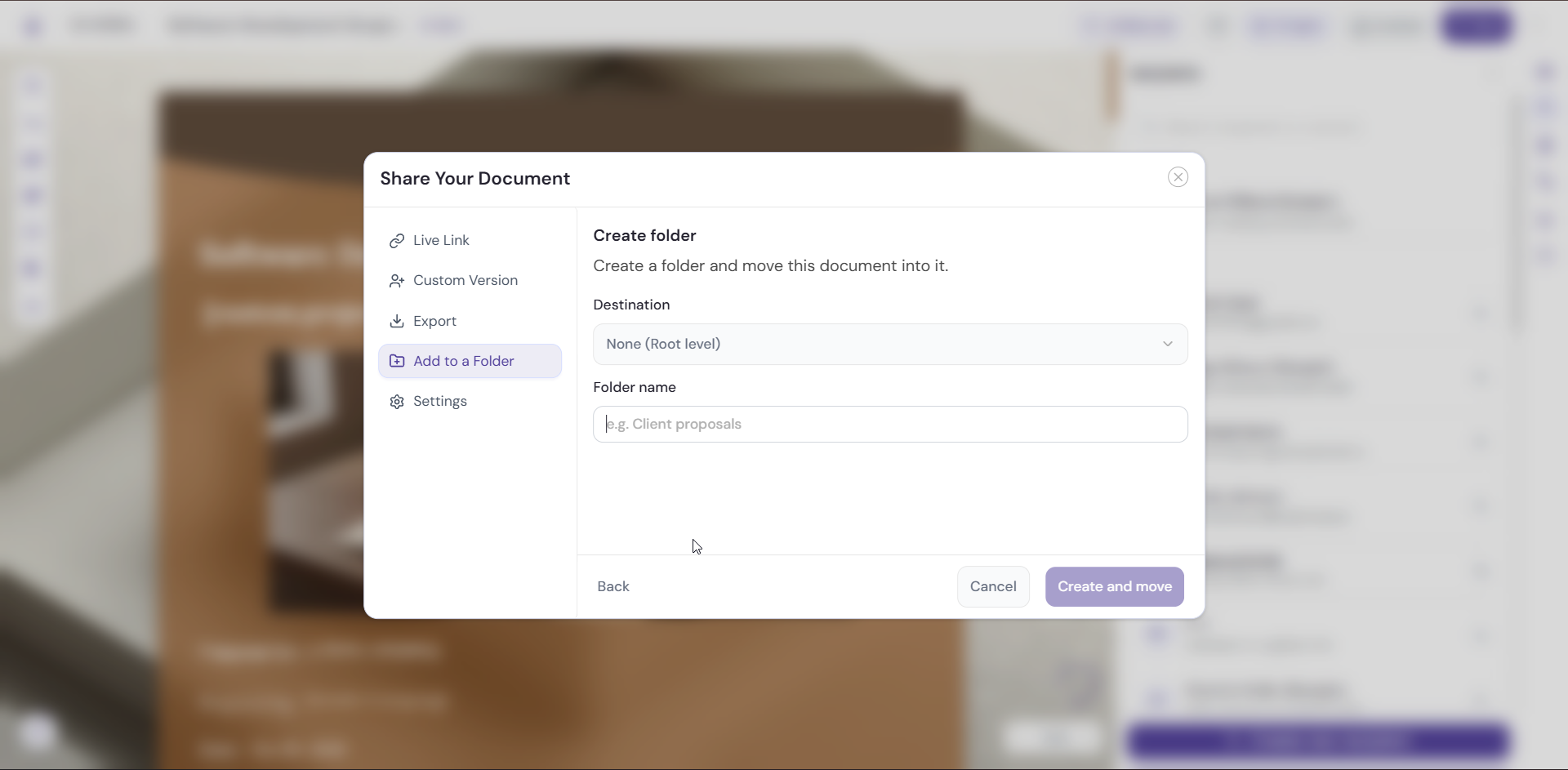
The Destination folder dropdown lists the places you can move your document to. The default is None (Root level), which means the document isn’t inside any folder.
To close the window without moving your document, click Cancel.
Pro Tips
-
Name your folders by client, project, or document type so you can find documents without searching.
-
Use Present to review your document before you file it away, so the version you store is the one you meant to keep.
-
Move documents into folders as soon as you create them. It’s quicker than sorting a long list later.
Next Steps
Learn about every sharing option in Sharing and Sending Your Document.